Digital Signage & Display Customization
Digital signage lets you turn your Mersive display into a 24/7 billboard that advertises your brand and provides information and eye-catching visuals. You can incorporate company branding, welcome messages, company stats, websites, advertisements, or other relevant information. This transforms the display into a useful asset for sharing messages and information, even when it’s not actively in use. This section includes instructions for digital signage and optional display customizations to help you make the most of your setup.
Digital signage plays videos, slide presentations, and websites on the Idle Screen while the display is not actively being used in a collaboration session.
Here is a sample digital signage image:

Digital signage works with the following media:
-
YouTube video URLs which are displayed without their standard frame.
-
Google Slides presentation URLs.
-
HTML web URLs.
When you enter the URL in the Admin portal, it will validate that the link is properly formatted, which increases the chances of a successful connection.
The Idle Screen has several information overlays (device name, connection instructions, clock) that can interfere with your digital signage. One option is to turn the overlays off (see Tips & Tricks below).
If you are creating custom visuals for your digital signage, you can account for the overlays in your custom design. The image below is a template of the standard view Idle Screen. Overlays are labeled, and measurements of their size and position are given in pixels.
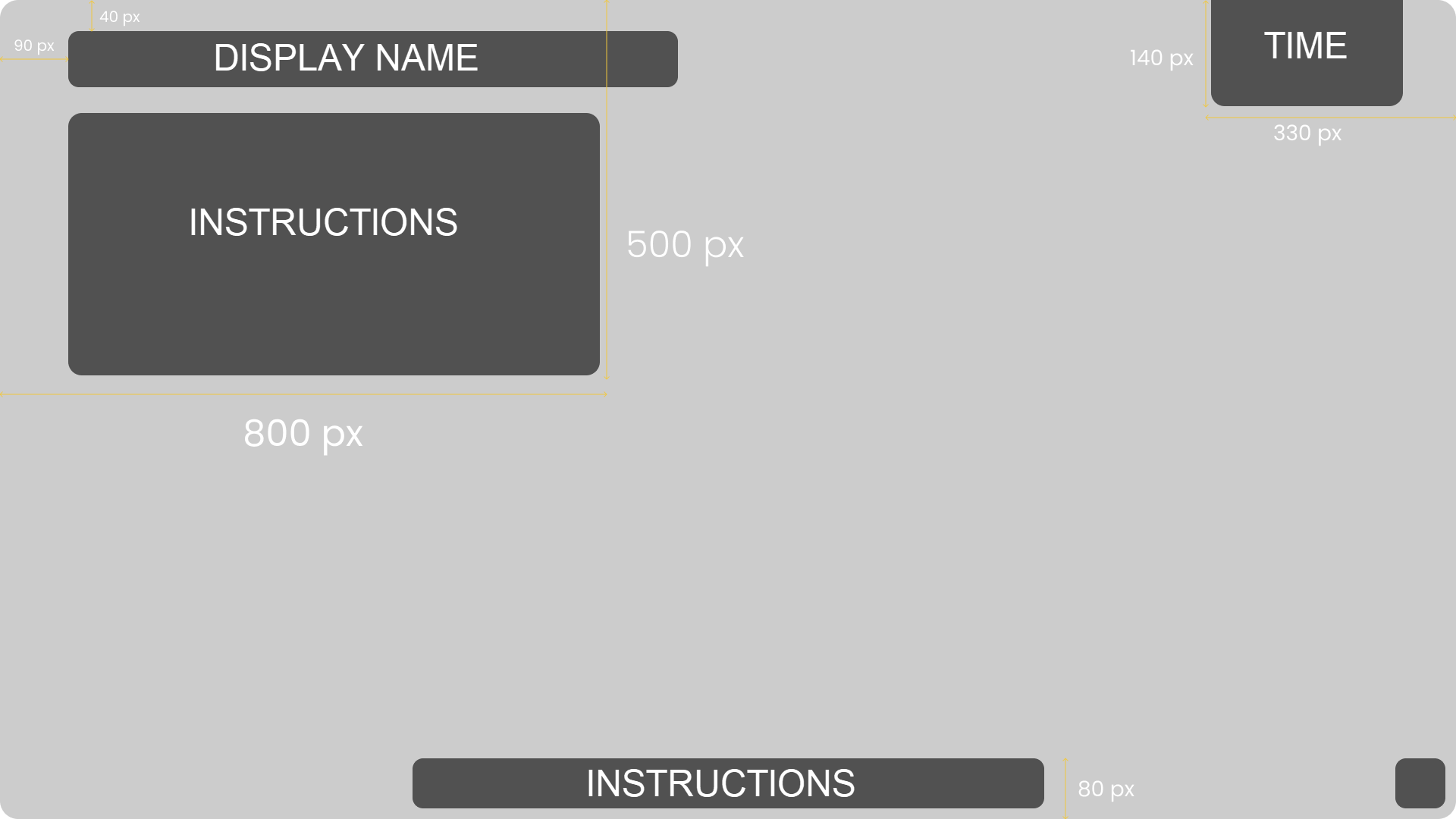
Here are a couple of things to keep in mind when working with the overlay template:
-
These measurements are based on a 1080p display. If you are designing for a 4k display, double each number.
-
The size of the Display Name window will vary based on the actual length of the name. Very long names will cause the text to wrap, which will move the upper instructions window down the screen.
Once you have your media posted, take the following steps to create your digital signage:
How to Set Up Digital Signage
-
Log into the admin portal and select the device that will run the digital signage.
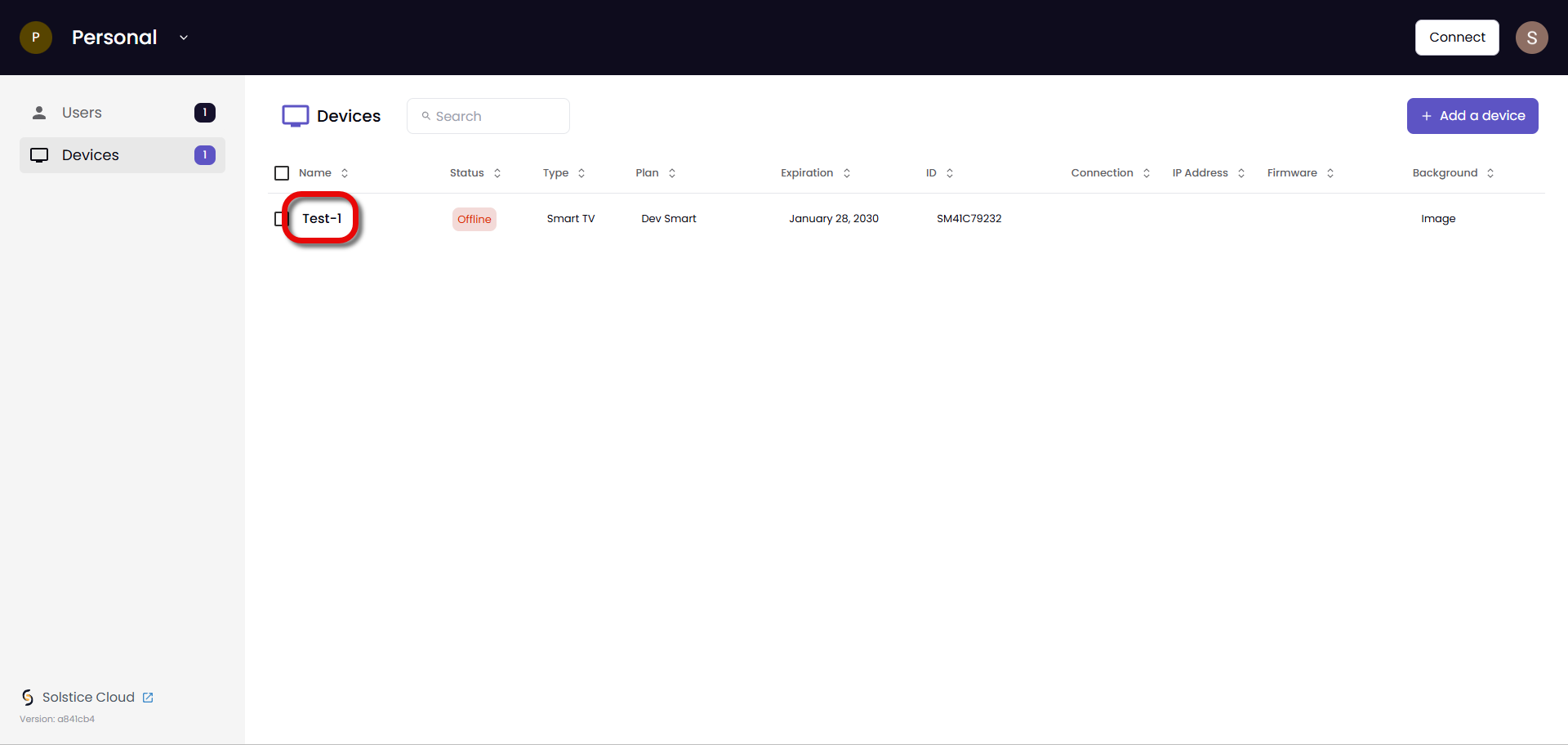
-
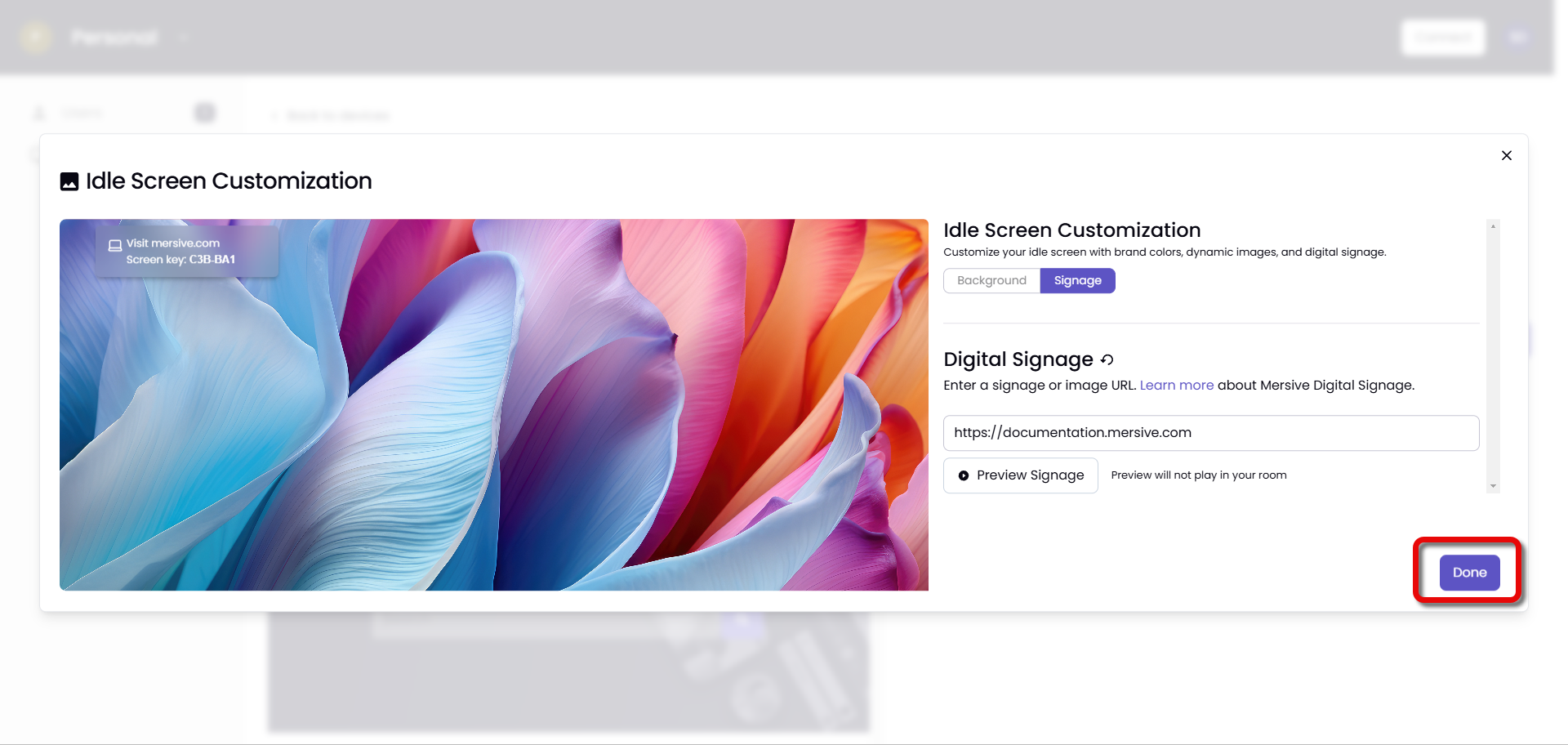
In the device settings, select Customize. The Idle Screen Customization popup appears.
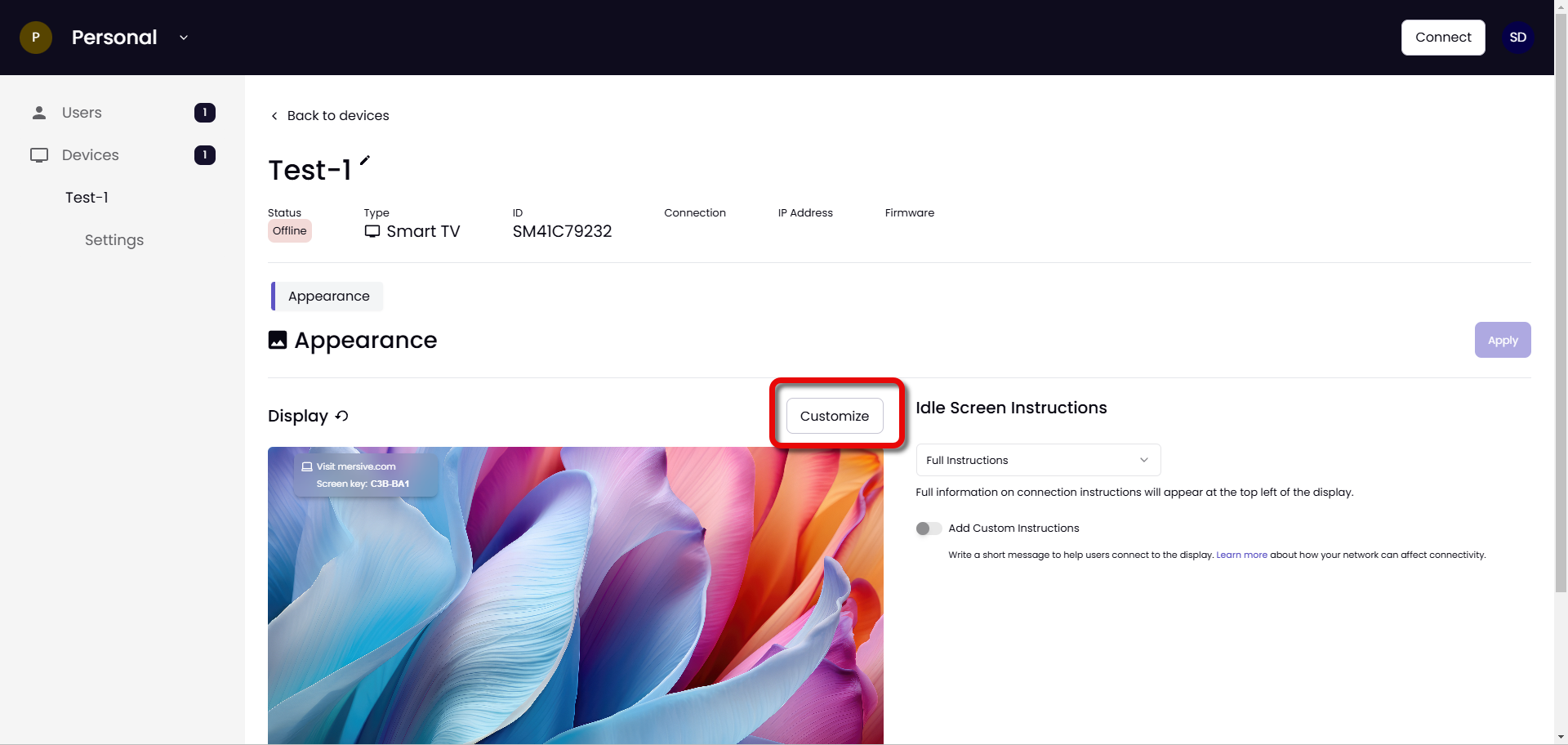
-
Select Signage.
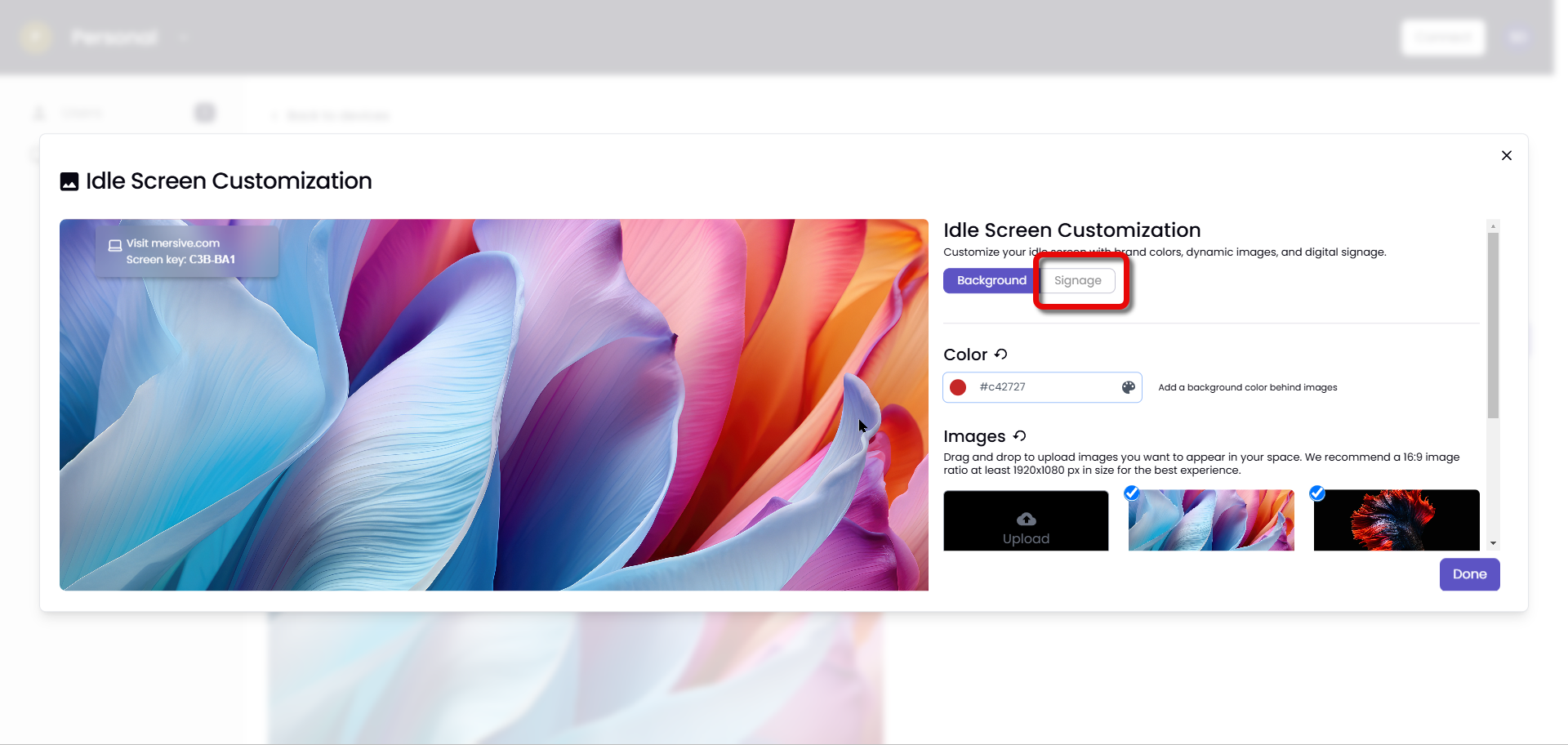
-
Enter the URL for the media file in the Digital Signage field.
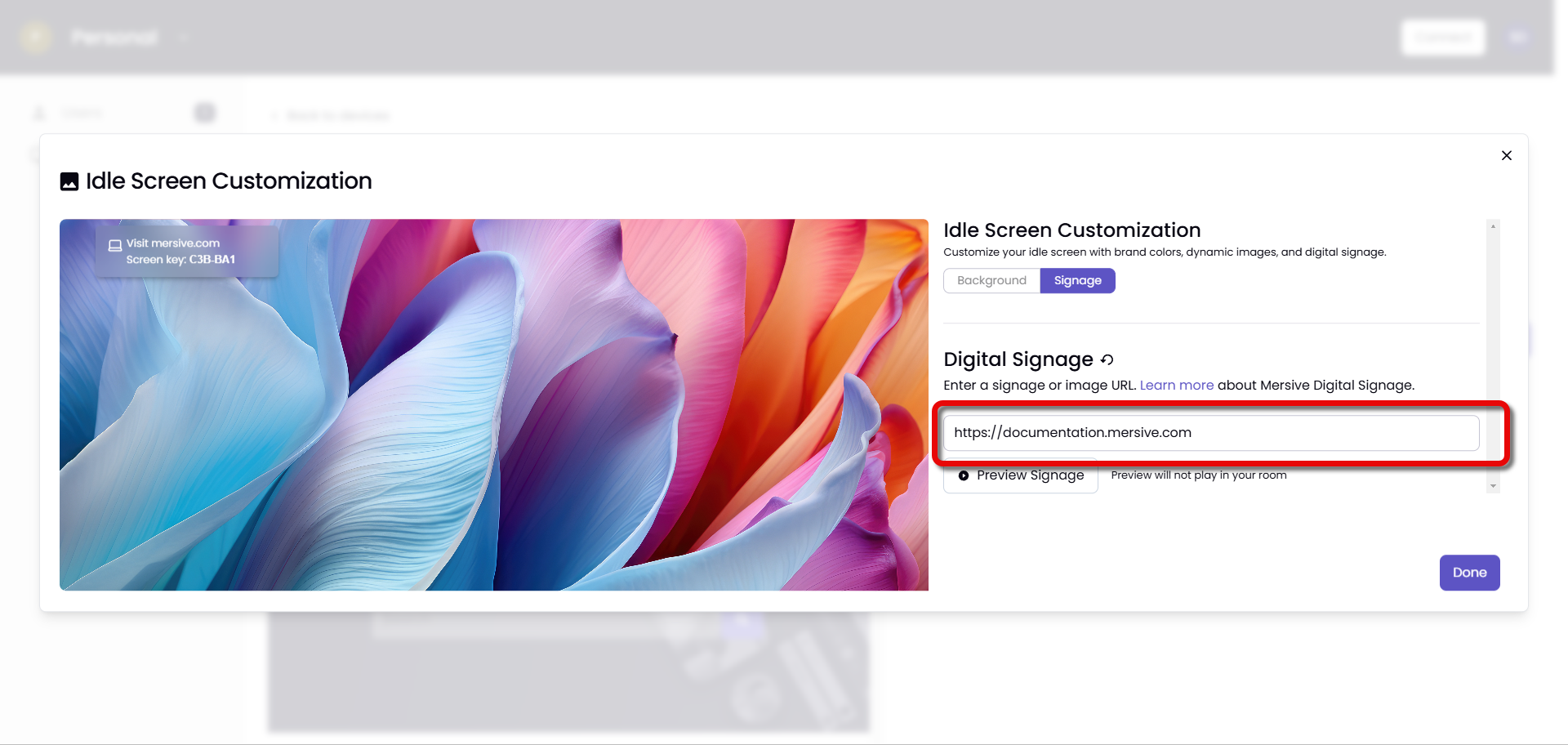
-
Select Done. The popup closes.
-
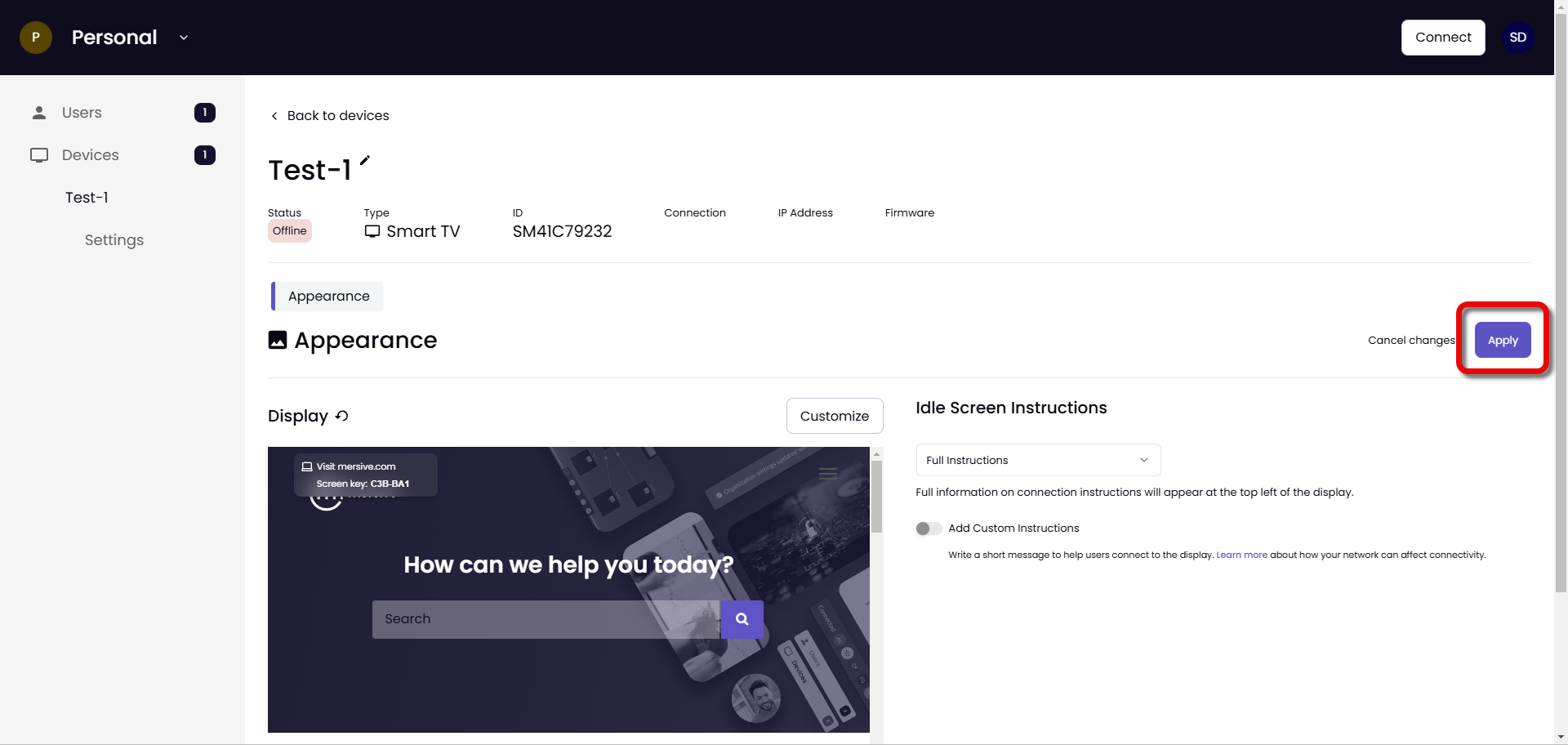
To save and start the digital signage, select Apply. To cancel, select Cancel changes.
Digital Signage Errors
If the digital signage feed is unavailable on a display (for example, when a URL returns a 404 error), the display will show the Idle Screen. Users can still connect and share to the display. A temporary, non-intrusive message will appear at the bottom of the Idle Screen with connection instructions.
The system will periodically attempt to refresh the digital signage feed connection.
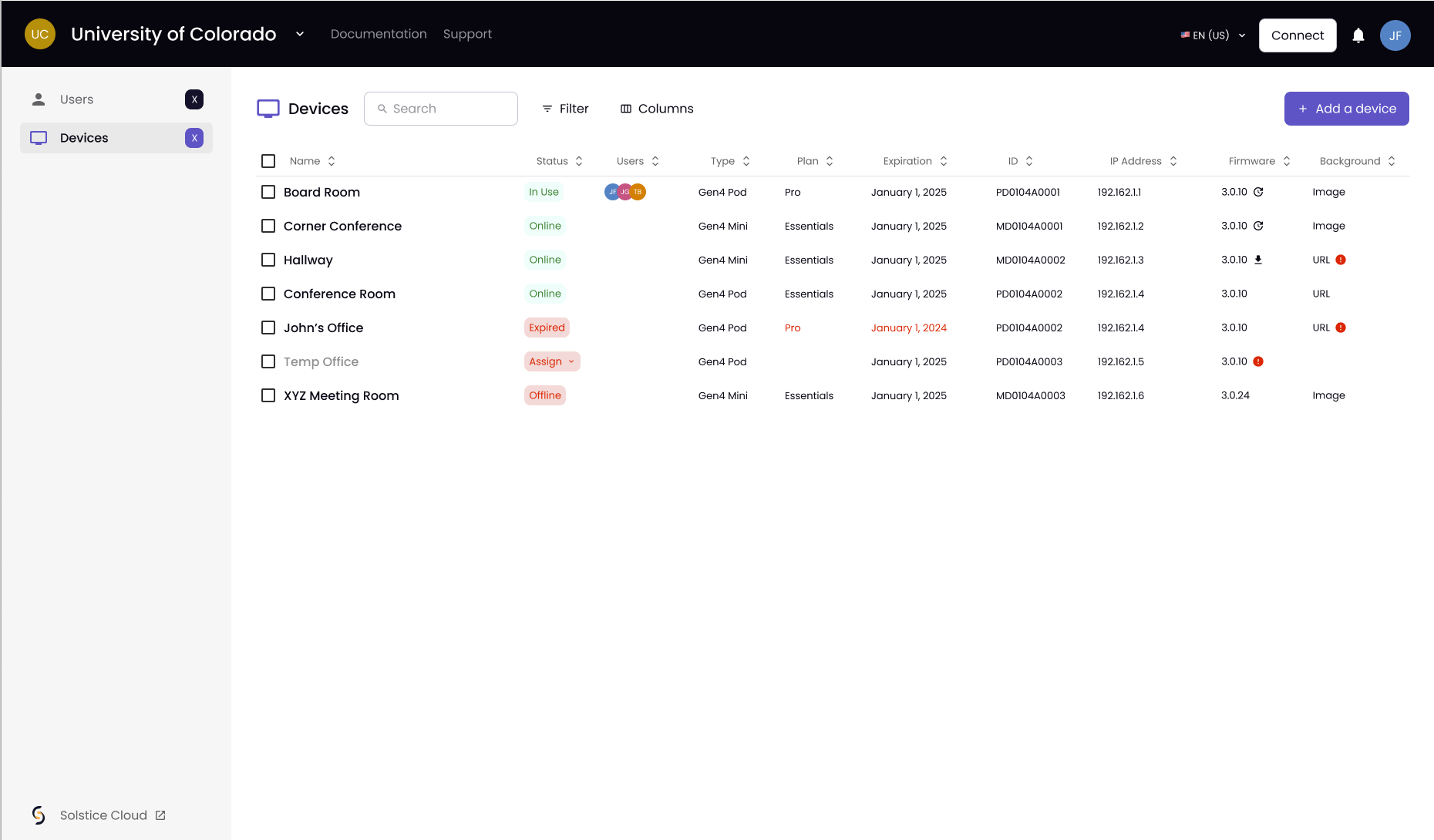
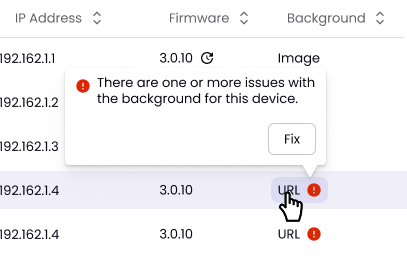
The Devices list in the Polaris Cloud will alert you to the problem. You will see an error icon on the digital signage info in the Background column and on the Device Settings page.
Take these steps to correct a digital signage error:
-
To check the status of your digital signage displays, go to the Polaris Cloud and view the Devices list. Error alerts will appear in the Background column.
-
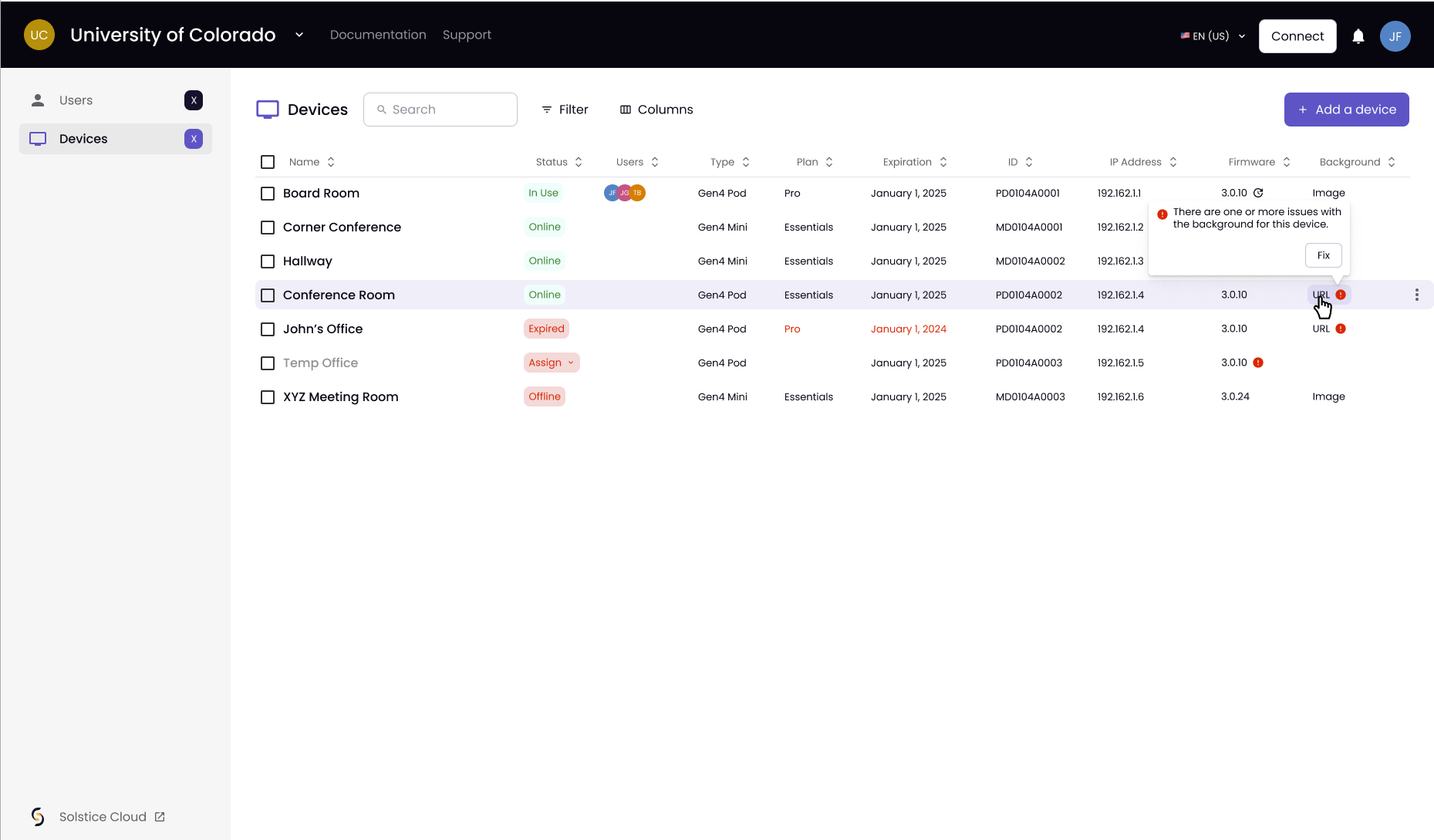
To learn more about an error alert, mouse over it. A tooltip describing the problem appears.
-
To fix the error, click the Fix button inside the tooltip. The Digital Signage tab opens to view and resolve the edit.
Digital Signage Tips & Tricks
Here are some hints to help you get the most out of your digital signage:
In this section
- Idle Screen CustomizationThe Custom Instructions feature in the Polaris Cloud allows you to add your own custom message to the Idle Screen. You can add a message up to 100 characters long.
- Background CustomizationThe Idle Screen background can be adjusted in two ways. You can select a color as the background, or you can upload one or more images to display in the background.
- Event-Based Digital SignageIn the Appearance tab of a Device, users can toggle on event-based digital signage. Events are based on room status, which is connected to the organization's calendar. The…
- Refreshing SignageThere are two ways to refresh the signage on your devices.
- Display OptionsThere are two customization options under Display Options that affect the information displayed on the Idle Screen: Display Name and Clock.
- Set Up Google CalendarTo set up Google Calendar, navigate to Integrations. In the Google Calendar box, toggle the Enable button, then click Configure.