Solstice Video Conferencing Checklist
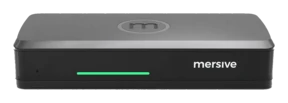
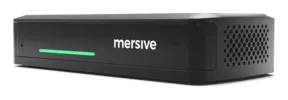
Solstice provides flexible, wireless video conferencing in any room that’s equipped with a Solstice Pod. With the installation of the Solstice Conference drivers, Solstice becomes a BYOM video conferencing system that delivers rich content sharing to remote participants and supports touchless, agnostic conferencing for any meeting wirelessly, usually at a much lower cost than single-purpose dedicated hardware.
Before realizing these benefits, however, it’s important that the minimum technical requirements be met to ensure a good video conference experience. This list outlines the specifications and requirements of the various system components—Solstice system, local area network, AV peripherals, and host laptop—which are generally consistent with current best practice IT methodologies.
Requirements and Recommendations
Solstice System
-
Gen3 Solstice Pod is connected to the network by Ethernet. It is strongly recommended that the Pod be running Solstice 5.5.1 or later. A current Solstice Subscription or Active Learning Subscription is also recommended.
-
Enable Solstice Conferencing is turned on for the Pod in the Solstice Cloud Room Intelligence settings (or Solstice Dashboard > Appearance and Usage).
-
Solstice Discovery Service (SDS) is installed and configured in the Mersive Solstice app (recommended).
-
Room calendar is configured on the Solstice Pod (optional).
Network
-
Solstice Pod is hardwired to the enterprise network via Ethernet. Solstice video conferencing is not supported if the Pod is connected wirelessly.
-
Connections between host laptop and Solstice Pod have end-to-end latency of 50 ms or less.
-
Network has a minimum bandwidth of 50 Mbps per active Solstice video conferencing session/room.
Audio/Video Peripherals
-
Use certified partner peripherals from the Solstice Peripherals List.
-
Audio and video devices must be connected to the Solstice Pod via USB.
-
Use external power supplies provided with peripheral devices, even if optional. A powered USB hub may be used as an alternative. Peripherals should not be powered via the USB connection to the Pod.
Meeting Host Laptops
-
Conference hosts (users who host the video conference from their laptop) have a laptop that meets the recommended Windows or macOS specs below.
Solstice Video Conferencing on Windows
Spec
Recommended
Required
Operating System
Windows 10/11
Windows 10 version 1903 or later
Hardware
Intel i7 quad core processor (8th generation or later) @ 2.4 GHz
16GB memory
Intel i5 quad core processor (6th generation or later) @ 1.6GHz
8GB memory
Support Note
CPU priority management in version 5.5.2 and later of the Mersive Solstice app for Windows may support Solstice video conferencing on some devices with less than a quad-core processor and 8 GB of memory. See more details.
Solstice Video Conferencing on macOS
Due to compatibility constraints with the latest macOS, Intel-based Macs no longer support Solstice video conferencing. You may still use the legacy Mersive Solstice client version 6.3 or lower for sharing, but do not use the “Room Camera + Mic” menu option.
The legacy 6.3 client was the final Mersive Solstice client release built to support Intel-based Macs. With Apple’s planned move to sunset support for Intel-based Macs and Rosetta 2, Mersive introduced a new client version 6.3.3, which runs natively on macOS Apple silicon chips (i.e., M-series Macs), but the “Room Camera + Mic” menu option has been removed.
-
Latest versions of Mersive Solstice app and Solstice Conference drivers installed on the meeting host’s laptop.
-
Screen resolution of 4K laptops scaled down to 1080p when connecting Solstice to a video conference.
-
No additional monitors attached to the host laptop during Solstice video conferences.
-
Installed conferencing applications (Zoom, Teams, etc.) updated to the latest versions.
-
Windows deployments using a tool that limits program access, like an anti-virus program, device management service, or a local firewall such as Windows Defender Firewall, may need to whitelist or allow the following program files used by the Mersive Solstice app on Windows:
-
rsusbipclient.exe -
SolsticeClient.exe -
SolsticeConference.exe -
SolsticeVirtualDisplay.exe(Mersive Solstice app 5.5.2 and earlier)
If the programs are not listed, add the programs manually using the installation path of the Mersive Solstice app. Example installation paths are as follows:
-
MSI & SCCM (installed with admin access from mersive.com/download/) app v5.3+ installers location:
C:\Program Files\Mersive Technologies, Inc\Solstice\Client -
MSI Solstice Conference drivers (installed with admin access from mersive.com/download/) installer location:
C:\Program Files\Mersive Technologies, Inc\Solstice\Solstice Conference -
Quick Connect app (installed with user access from v5.3–5.5.2 Solstice Pods or mersive.com/download/) location:
C:\Users\%username%\AppData\Local\Mersive\SolsticeClient
-
Limitations
-
The amount of local area network bandwidth required is largely dictated by a combination of the video conferencing application and video camera used.
Resolution: Use lower resolution cameras if local area network bandwidth is limited.
-
Audio crackling, degradation of streaming quality, and other performance issues may occur when the Pod is under high resource utilization.
Resolution: Reduce number of shares, video content shared, and/or use lower resolution cameras if system performance issues occur.
-
Conference hosts using 4K laptops may be limited to a single desktop share; sharing additional content may strain the laptop’s resources.
Resolution: Mersive recommends scaling your screen resolution down to 1080p when connecting Solstice to a video conference.
-
Cameras connected to the USB ports on a Solstice Pod deliver video to the host’s laptop for video conferencing at 720p.
Resolution: Mersive is exploring a number of development ideas for changing how Solstice integrates with video conferences that could eliminate this limitation in future versions.
-
The Mersive Solstice app currently supports integration with Microsoft 365 calendars only.
Resolution: Support for integrating other calendars may be added in the future. Contact your Mersive representative with specific requests.
Next Topic
Supported Video Conferencing Peripherals