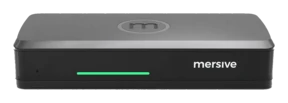
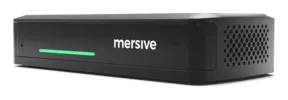
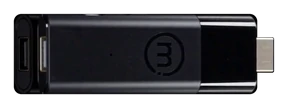
Miracast Performance Tech Note
Miracast Overview
Introduced in 2012 by the Wi-Fi Alliance, Miracast is a standard for devices such as laptops, tablets, and smartphones to connect to wireless display receivers such as TVs, monitors, or projectors. It can roughly be described as “HDMI over Wi-Fi.” Miracast essentially replaces the cable between the device and the display.
The standards for Miracast are defined by the Wi-Fi Alliance, with significant contributions from Microsoft. It is similar in functionality to AirPlay from Apple and Chromecast from Google. A variety of devices now natively support Miracast, including laptops running Windows 8.1 and 10, as well as devices from consumer device companies such as Samsung, LG, Roku, and Amazon. Mersive introduced Miracast support starting with Solstice 3.5, and in Solstice 4.6, Mersive made improvements to connectivity, latency, and video and audio delivery. (Note that Android phones starting with version 4.2 (Jelly Bean) were Miracast-enabled, but Miracast support was dropped at version 6.0 (Marshmallow).)
Mersive’s Miracast Support
Mersive’s implementation of Miracast fully complies with the Wi-Fi Alliance specification for Wi-Fi Direct (WFD) and the Miracast over Infrastructure Connection Establishment Protocol (used for the Existing Network implementation). It uses the following protocols:
- Device discovery based on Wi-Fi Protected Setup (WPS), a peer-to-peer (P2P) protocol
- A control protocol based on RTSP, layered on TCP
- A streaming protocol based on RTP, layered on UDP
Mersive is one of very few vendors that support both WFD and Existing Network implementations. Furthermore, Mersive’s Existing Network, or infrastructure mode, supports encryption, which is critical in enterprise network deployments. Mersive’s implementation of Miracast also honors the use of default or “per Pod” encryption certificates.
Miracast Limitations
Miracast is based on UDP, which does not guarantee data packet delivery. Consequently, Miracast connections are more sensitive to network stability. When compounded with wireless infrastructure limitations and environmental factors, Miracast performance may not be optimal. Mersive’s implementation avoids many of these issues as it has been architected to be more resilient in dealing with environmental gaps. However, your Miracast performance will also depend on the user device’s implementation of Miracast support.
Technical Description
Miracast supports sharing over two different transport types:
- Wi-Fi Direct (WFD): a peer-to-peer (P2P) connection that does not require a wireless access point (WAP), where your client device connects in a single hop to the sink device (that is, the Solstice Pod). In this mode there is no need for any additional network infrastructure.
- Existing Network (or Miracast over Infrastructure): a connection over an existing Wi-Fi or Ethernet network using the “Miracast over Infrastructure Connection Establishment Protocol” (MS-MICE). Typically, the existing network is an internal LAN that can be either Wi-Fi or Ethernet.
Process for Sharing with Miracast
There are three steps in the process of sharing content using Miracast on a Solstice Pod:
- Device discovery of the Miracast-enabled Solstice Pod
- Authenticating to the Solstice Pod
- Sharing device content to the Solstice Pod over Miracast
1. Device Discovery of the Miracast-Enabled Solstice Pod
After Miracast is enabled, the Solstice Pod broadcasts that it supports Miracast along with some of its capabilities, such as SSID, name of the Pod, encryption method, and infrastructure capability. This is similar to how a Wi-Fi hotspot broadcasts SSIDs so you can connect.
- This broadcast is the required method for devices to find the Miracast-enabled Pod, using either Wi-Fi Direct or Existing Network. It is required even if you only use the Existing Network transport.
- If you disable WFD in Solstice, it does not disable the Wi-Fi Discovery broadcast, as it is the only way to find the Pod. In this mode, WFD connections are essentially refused but Wi-Fi itself is still on.
In addition, a hybrid configuration is supported when the Solstice Pod is configured in Existing Network mode, where one device is connected to Ethernet and another is connected to Wi-Fi on a unified network.
2. Authenticating to the Solstice Pod
After device discovery, the IP addresses of the client device and the Solstice Pod are passed to the protocol layers, which initiate a TCP connection that allows a capabilities exchange and session setup. This is followed by a UDP connection for video and audio streaming.
The way the device connects to the Pod, and how it authenticates, differs depending on whether the Solstice Pod is set up to use Wi-Fi Direct or Existing Network.
Wi-Fi Direct Mode
If the Pod is in Wi-Fi Direct mode, the device negotiates directly with the Pod via Wi-Fi and joins as a P2P group. If Access Control for the Pod has Enable screen key checked, the device authenticates via WPS. (This is the functionality that the WPS button on your Wi-Fi router uses to connect devices.) If Enable screen key is not checked, the device connects without authentication.
Existing Network Mode
If the Pod is in Existing Network mode, the device negotiates and connects with the network port (Wi-Fi or Ethernet) and checks whether a screen key is required. If a screen key is required, traffic is encrypted using Datagram Transport Layer Security (DTLS).
3. Sharing Device Content over Miracast
Audio and video are shared over Miracast using the Real-time Transport Protocol (RTP). You can have a maximum of four simultaneous Miracast sessions on a single Pod. However, depending on network bandwidth and latency, two Miracast sessions may be more practical.
All Miracast connections are concurrent with all other client connections to the Pod.
Miracast Performance Expectations by Use Case
The sections below describe the options for Miracast network configuration and discuss the setup and use of Solstice’s Miracast support to achieve the best possible performance.
Over Existing Network: Miracast via Ethernet
- Miracast mode: Over Existing Network
- Solstice Pod network connection: Attached via Ethernet
- Client device network connection: Attached via Ethernet
This use case offers the highest reliability for Miracast sessions, with ~0% packet loss and >95% connection success. The latency should remain in the range 100–166ms, and corruption should be non-existent. If both Ethernet and Wi-Fi are enabled, Miracast favors Ethernet. This is the least common use case because it requires an Ethernet cable connection, which in most cases means the device is a laptop.
Over Existing Network: Miracast via Wireless Network
- Miracast mode: Over Existing Network
- Solstice Pod network connection: Attached wirelessly
- Client device network connection: Attached wirelessly
The performance of this use case is entirely dependent on the performance of the existing wireless network. Problems such as distant access points or low signal strength can significantly decrease reliability and create packet loss as high as 10% and latency of multiple seconds.
Measuring the signal strength of the existing wireless network is an important step in setting up this mode. Solstice Pods can internally measure signal strength, but this information is not available to users. Android phones and many other devices can measure Wi-Fi signal strength. The following table lists expected performance based on signal strength:
| Signal Strength | Signal Quality | Description |
|---|---|---|
| > -30 dBm | Excellent | Maximum achievable signal strength |
| > -50 dBm | Very Good | Excellent level for all network uses |
| > -65 dBm | Good | Sufficient level for streaming video |
| > -70 dBm | Marginal | Acceptable only for web browsing and email |
| > -80 dBm | Bad | Packet delivery will be unreliable |
| < -90 dBm | Very Bad | Mostly noise, not usable |
Over Existing Network: Miracast via Ethernet or Wireless Network
- Miracast mode: Over Existing Network
- Solstice Pod network connection: Attached via Ethernet or wirelessly
- Client device network connection: Attached via Ethernet or wirelessly
The performance and latency of Miracast in this use case fall somewhere between those of Miracast via Ethernet and Miracast via Wireless Network, and are mostly determined by the quality of the wireless network.
Wi-Fi Direct: Miracast via Wi-Fi Direct
- Miracast mode: Wi-Fi Direct
- Solstice Pod network connection: No network connection required, but the Pod must have Wireless Settings enabled and WAP disabled
- Client device network connection: No network connection required
This use case offers reasonable reliability for Miracast sessions, generally with <1% packet loss and >90% connection success. The latency should remain in the range 100–166ms, and corruption should be limited. Wi-Fi Direct works well because a link is made directly between the device and the Solstice Pod, avoiding any performance issues with the enterprise wireless network. Wi-Fi Direct depends on the device and the Pod being within approximately 150–200 feet of each other, with mobile devices typically needing to be within a 25–35-foot range. This essentially means that the device and Pod need to be in the same room.
Other Important Considerations
- The resolution of Miracast streaming is limited to 1080p.
- Miracast beaconing (Wi-Fi Direct mode) occurs on the 2.4 GHz band on channels 1, 6, or 11.
- Miracast streaming in Wi-Fi Direct mode also occurs on the 2.4 GHz band on channels 1, 6, or 11, because Wi-Fi Direct mode does not use the 5 GHz band. Solstice cannot configure which channels Wi-Fi Direct uses.
- If using Wi-Fi Direct, make sure there is no channel overlap within your corporate wireless environment. If there is significant noise on the same channels used for Wi-Fi Direct, the user experience and performance may be significantly degraded.