View and Manage USB Devices
Solstice Cloud allows you to easily view which Pods in your deployment are connected to which kinds of USB devices, both audio/video devices and other devices, such as input and storage peripherals. Knowing which Pods have connected cameras allows you to then enable Solstice video conferencing and occupancy sensing in the Room Intelligence options for those Pods.
USB Devices Summary Data
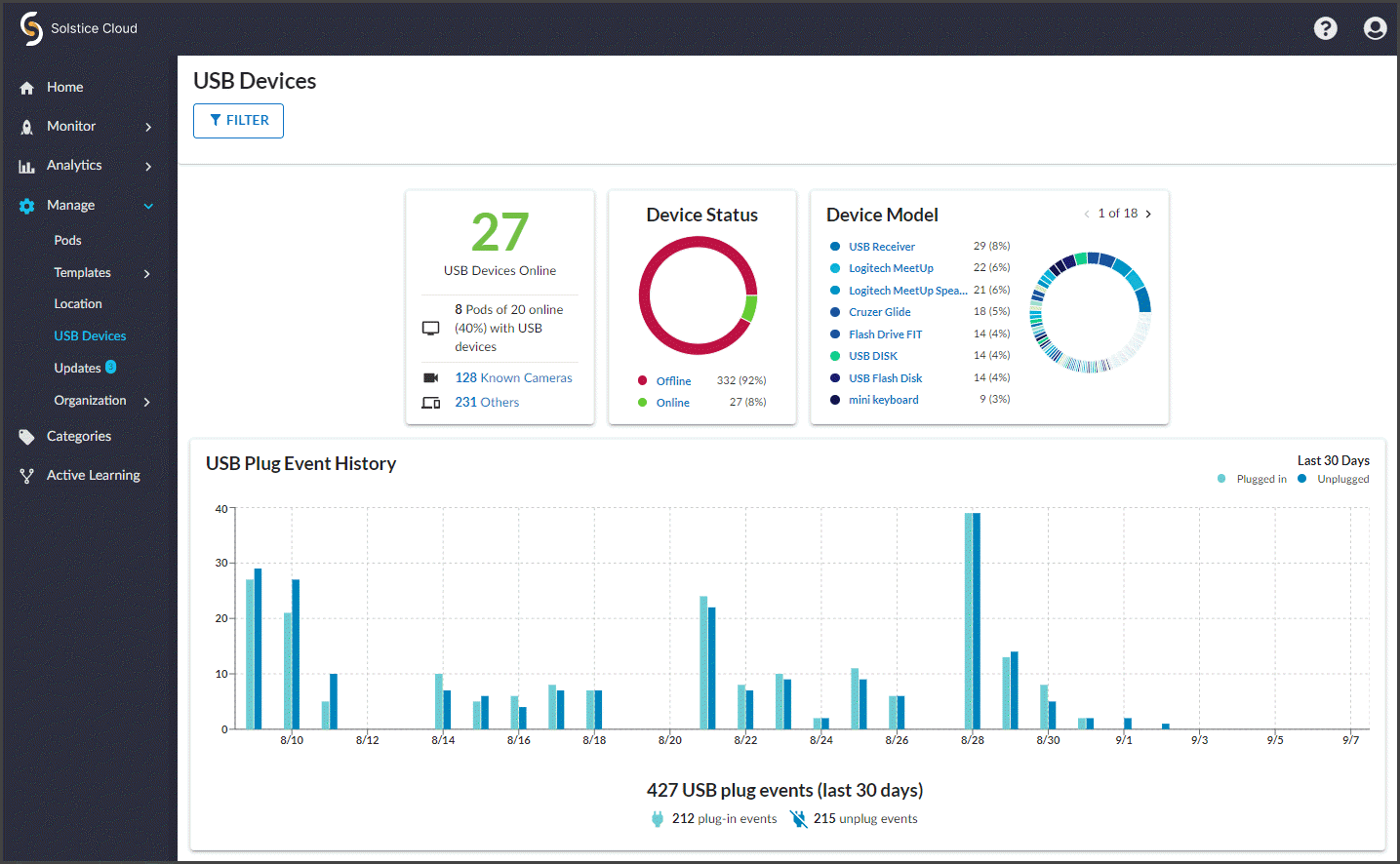
Solstice Cloud reports the number and type of USB devices connected to the Solstice Pods in your organization, both online and offline, as well as details about specific USB devices that are used on Pods in your organization. The three boxes at the top of the USB Devices page contain summary data about USB devices connected to your Pods.
-
Online USB Devices The summary box on the left reports the number and type of USB devices connected to Pods in your organization that are currently online. Solstice categorizes these devices into A/V (audio/video) and Non-A/V types.
-
USB Device Status The circle chart in the Device Status box provides an at-a-glance summary of online/offline status for all USB devices that are plugged into both online and offline Pods in your organization.
-
USB Device Models The right box summarizes the numbers of specific USB device models you have connected to your Pods, provided in both a list and a handy graph. This makes it easy to see which devices you have the most of in your Solstice deployment.
Below the USB devices summary information, the USB Plug Event History graph shows the number of the times USB devices are plugged in to or unplugged from your organization’s Pods each day for the last 30 days. Hover over the lines for a particular day to see exact plug-in/unplug event numbers.
USB Devices Table Details
The Devices table at the bottom of the USB Devices page provides more details about each of the USB devices that have been connected to the Solstice Pods in your organization, including each device’s details, current status, and the readiness of the associated Pod for Solstice conferencing and occupancy sensing functionality.
The USB Devices data can be sorted by the values in each column to find Pods and USB devices that meet various criteria by clicking the  icon in the column header. Possible sorts include:
-
Alphabetically by the Pod name (default)
-
Alphabetically by USB Device (groups similarly named USB devices together)
-
By online/offline status in the USB Status column: A red dot
 indicates the USB device is offline. Hovering over a red or green status dot shows the status in text format.
-
By the date and time in the Since column, when the USB device was last plugged in to or unplugged from the Pod
-
By whether the Pod connected to a USB device is Conference Ready: A green check
 indicates all hardware, software, and configuration requirements for Solstice video conferencing functionality have been met. Hover over the
 status to see which requirements for Solstice video conferencing are not yet met.
-
By whether the Pod connected to a USB device is Occupancy Ready: A green check
indicates the software and configuration requirements to report conference space occupancy data in the Solstice Cloud Analytics information have been met. Hover over the status to see which requirements for occupancy sensing are not yet met.
How To
Access This Page
To view available information about USB Devices connected to Solstice Pods in your organization:
-
Log in to Solstice Cloud.
-
In the left sidebar menu, click to expand the Manage options.
-
Select USB Devices.
Filter for A/V or Non-A/V Devices
The USB Device data provided in Solstice Cloud can be filtered by type of USB device, either audio/video (A/V) or non-A/V devices, such as input and storage peripherals.
-
In the left summary box that lists the number of USB Devices Online, click one of the two links at the bottom that list the number of A/V devices or Non-A/V devices.
-
A button for the selected filter appears under the page title, to the right of
 . The summary boxes at the top of the page and the table at the bottom of the page now show only USB devices that match the selected type.
-
Click
 in the filter button to clear a selected filter and display more general USB devices data.
Filter USB Devices by Pod Categories
-
Click the
button in the upper left. The Filter by Category pane opens over the right side of the page. -
Click the
 icon for each category to reveal the available category options.
-
Select the options you want to filter for in each category.
-
Click the
 icon to view the table with the selected filters applied.
-
Selected filters appear in blue lozenges to the right of the Filter button at the top of the page. To remove a previously set filter, click the
icon for the filter you want to remove from the displayed data.