Manage Users and Roles in Solstice Cloud
Solstice Cloud provides the ability to invite users to your Solstice Cloud organization and manage their level of access. Administrators can configure authentication with Okta or Microsoft Azure AD as an SSO identity provider. The How To section below details how to configure users to authenticate with and without SSO. See Configure Single Sign-On for how to configure your Solstice Cloud organization to connect with an SSO identity provider.
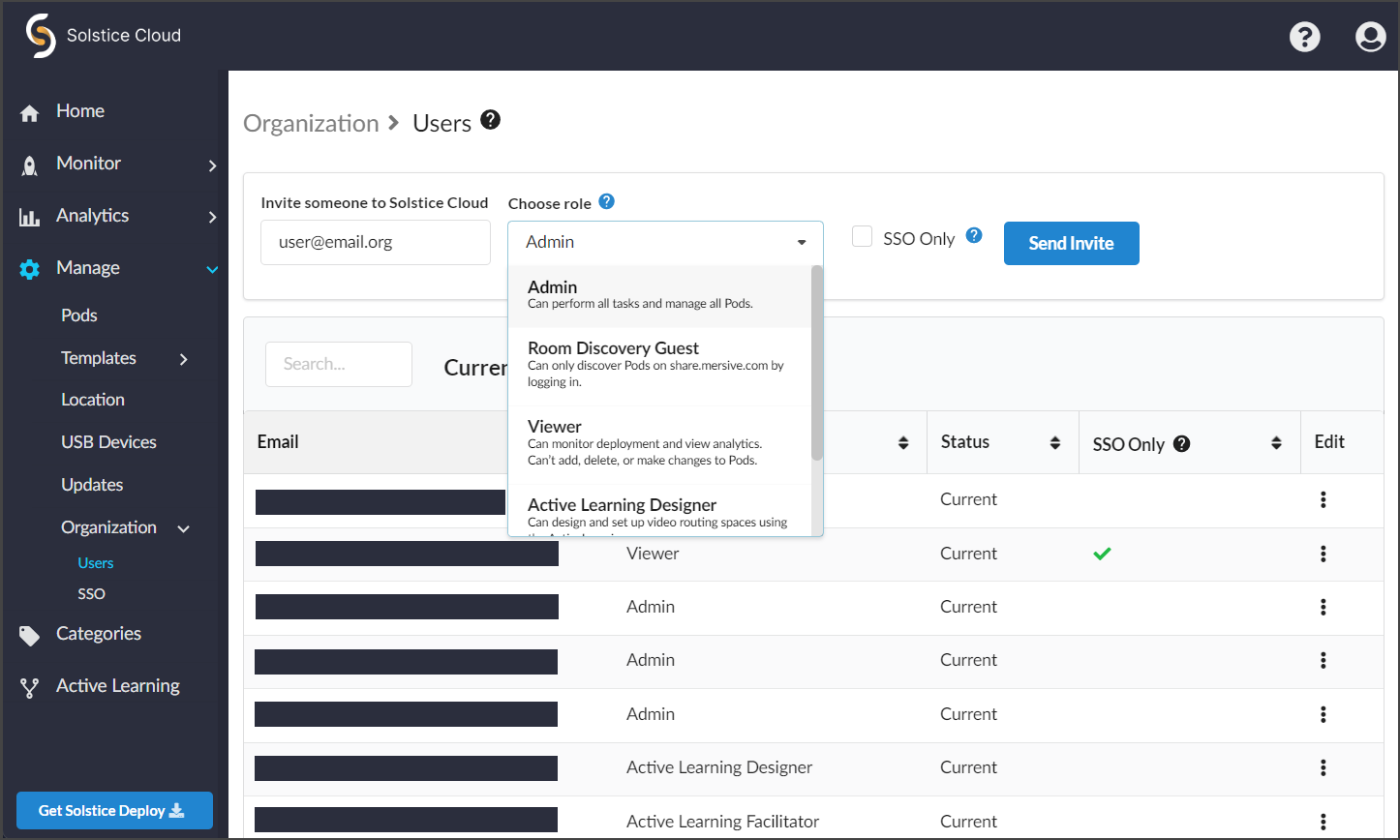
Each user account is assigned a role that determines the level of access and permissions that user has. Users may only add or edit user accounts that are at or below the access level of their own accounts. The following roles and permissions are available to assign to users in your organization:
-
Admin: Can perform all tasks and manage all Pods within the associated Solstice Cloud organization. This level is best reserved for users that administrate an entire Solstice deployment.
-
Room Discovery Guest: Discovery-only account that can log in on the Solstice Web app (share.mersive.com) for a list of Solstice Pods to share content to in the associated Solstice Cloud organization.
-
Viewer: Can monitor the Solstice deployment and view analytics but cannot add, delete, or make changes to Pods in the deployment. Can monitor deployment and view analytics. Cannot add, delete, or make changes to Pods.
-
Active Learning Designer: Can use the Solstice Active Learning app to virtually design and set up video routing spaces. Designers can also facilitate routing sessions. Note: Active Learning applications do not support SSO, so ensure that accounts created for Active Learning do not utilize SSO Only. See note below for details.
-
Active Learning Facilitator: Can use the Active Learning app to conduct video routing sessions. Note: Active Learning applications do not support SSO, so ensure that accounts created for Active Learning do not utilize SSO Only. See note below for details.
How To
Invite Users and Set Roles and Authentication
-
Log in to Solstice Cloud with an Admin account.
-
In the left navbar, go to Manage > Organization > Users.
-
In the Invite someone to Solstice Cloud field, enter the email address of the user to invite to access your organization’s Solstice Cloud account.
-
From the Choose role list, select the role and corresponding permissions to apply to the user. A user’s role can be changed at any time.
-
If your organization is configured to use single sign-on (SSO), you have a choice of how to authenticate the new user.
-
To always authenticate the new user with SSO, select SSO Only.
-
To allow the new user the option of authenticating with a password, do not select SSO Only.
-
-
Click the button to invite or add the new user:
-
If SSO is not configured for your organization, or if SSO Only is not selected, click Invite User. Solstice Cloud sends an email invite with a link to set up an account to the email address provided.
-
If SSO Only is selected, click Add User. The user’s account is added to authenticate only with single sign-on.
-
Edit User Roles and Authentication
-
Log in to Solstice Cloud with an Admin account.
-
In the left navbar, go to Manage > Organization > Users.
-
In the Edit column of the Current Solstice Cloud Users table, click the vertical ellipsis
 icon.
-
To change the user’s role, click Role, then select the new role to apply to the user account. The role change is automatically saved.
-
To set a user to always authenticate with single sign-on (SSO), click SSO Only. A green check appears in the SSO Only column of the user table and after SSO Only in the edit menu.
-
Delete a User Account
-
Log in to Solstice Cloud with an Admin account.
-
In the left navbar, go to Manage > Organization > Users.
-
In the Edit column of the Current Solstice Cloud Users table, click the vertical ellipsis
icon. -
Click Delete User. A prompt appears to confirm you want to delete the account.
-
Click Delete. The user account is deleted.
Change Your Account Password
-
Log in to your Solstice Cloud account.
-
Click the User
 icon in the top-right corner and select Change Password from the menu.
-
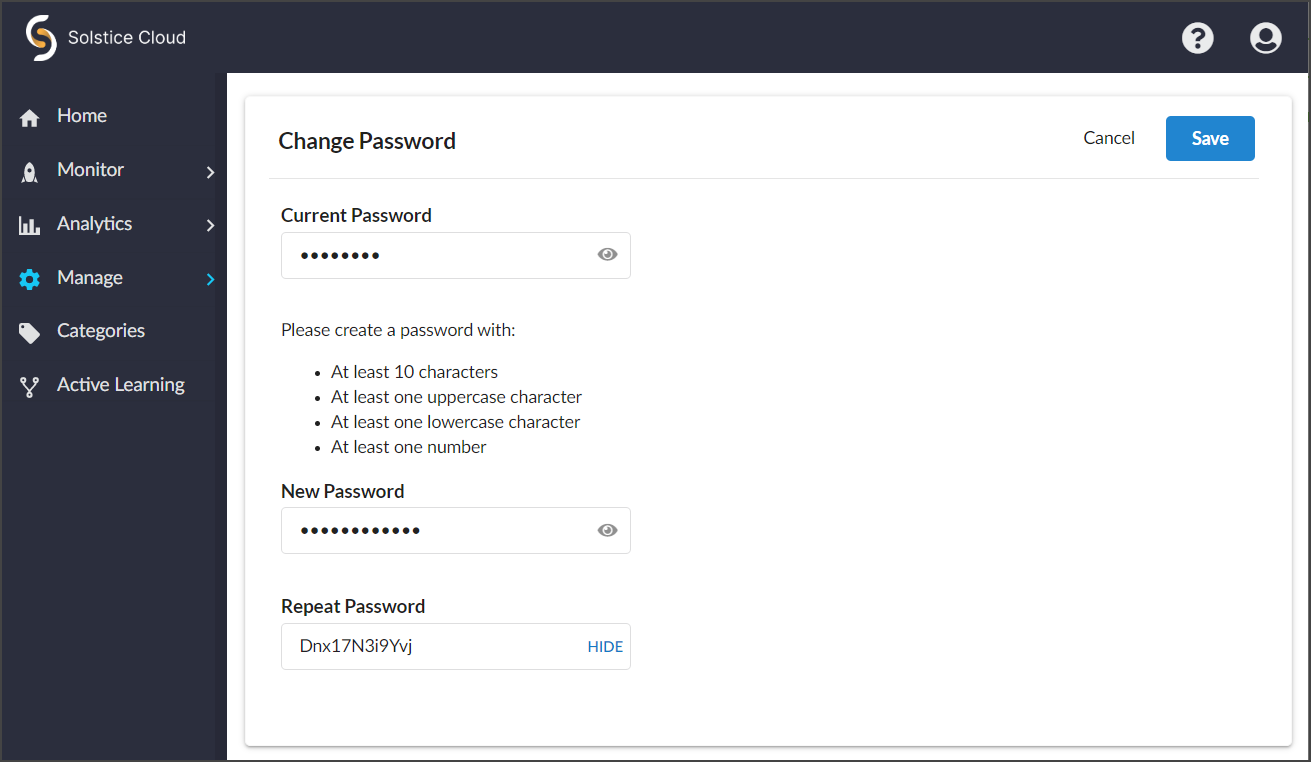
Enter your Current Password at the top of the page.
-
Then enter a New Password that follows the listed password rules.
-
Retype your new password in Repeat Password.
-
You may view a password you have entered by clicking the eye
 icon next to it. Click Hide to stop showing the entered password.
-
Click Save to apply the new password to your Solstice Cloud account.