Share Content with the Mersive Solstice App on a Laptop
Solstice improves meeting productivity and engagement with multi-participant content sharing, layout control, and moderation tools. With the Mersive Solstice app installed on a laptop, users can share and control content on the display connected to a Solstice Pod. Many of the same tools, as well as content markup with Solstice Ink, are available in the Mersive Solstice mobile app.
Users can also use the redesigned Solstice web app or one of the other app-free sharing options supported by Solstice to share to the Solstice display.
How to Connect to a Solstice Display
Ensure you are connected to a network listed on the display’s Welcome Screen, then connect to the Solstice display to share content:
-
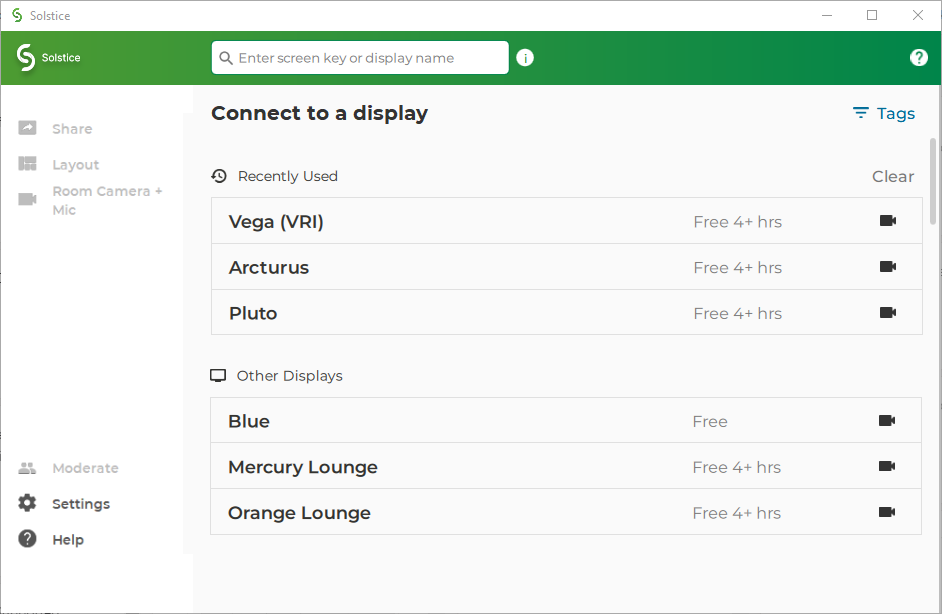
Open the Mersive Solstice app. A list of Solstice displays you previously connected to or that are available via display discovery (if enabled for your Solstice deployment) appear.
-
Click the name of a Solstice display to connect.
-
To find a specific display in the list:
-
Search by name in the search bar.
-
Click Tags to filter the list of displays by assigned tags (Enterprise Edition only).
-
-
If prompted, enter the screen key that appears on the display.
-
For deployments that use Solstice Discovery Service (SDS), you may enter the 4-digit screen key on the Solstice display in the search bar at the top of the app window to connect in one step. The URL that appears on the Solstice display can always be entered in the search bar to start a connection.
-
By default, you join the collaboration session with full media posting and control rights.
How to Share Content Using the Mersive Solstice App
In the Share tab of the Mersive Solstice desktop app, you can wirelessly share an unlimited amount of content to the Solstice display using any of the following options. Note that the content shared to Solstice never leaves your device, only pixels are streamed to the display.
-
Desktop: Share a real-time view of your desktop mirrored to the display. The entire desktop, including any open application windows, is shared in real-time.
-
App Window: Share a real-time view of only the selected application window to the display. This sharing option allows you to maintain privacy by only sharing a single application instead of everything on your desktop.
-
Media File: Share media files such as images and videos saved locally on your laptop device to the display. Solstice supports image and video files up to 4K resolution.
When sharing your desktop, the Mersive Solstice app window is hidden by default. Click Sharing Desktop at the top of your screen to show it again. You can also click Stop Sharing to quickly stop sharing your desktop.
How to Find Help in the Mersive Solstice App
In-app resources to help users get the most out of their Solstice experience are available in recent version of the Mersive Solstice app on Windows and macOS:
-
Contextual help can be opened by clicking the help (question mark) icon in the upper right of the app window. A pop-out window appears with hints about what can be done from that area of the app. This information changes to match your location as you move to different sections in the navbar.
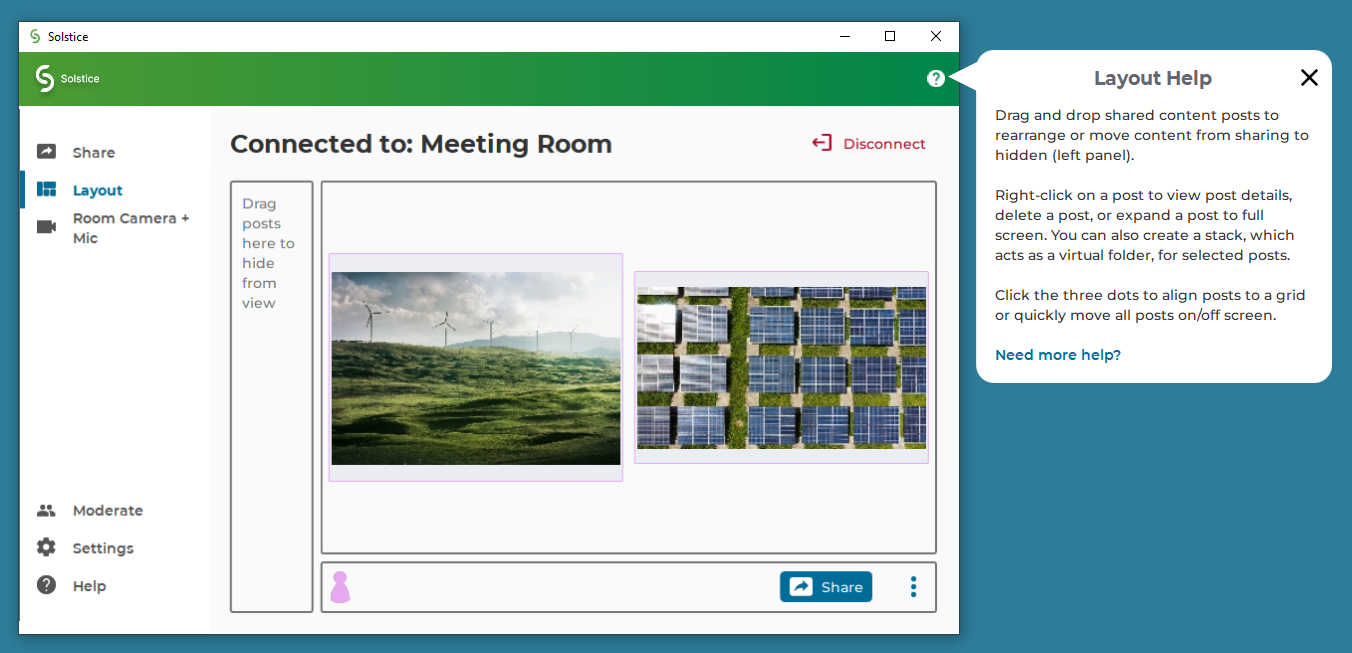
Click the X to close the window, or follow the Need more help? link for more information about the topic.
-
Help articles about the most common tasks in the Mersive Solstice app can be found by going to Help (question mark icon) in the left navbar, or following a link from the contextual help window. Most articles contain animated examples that show simple demonstrations of the tasks being described. Animations can be paused and resumed as needed.
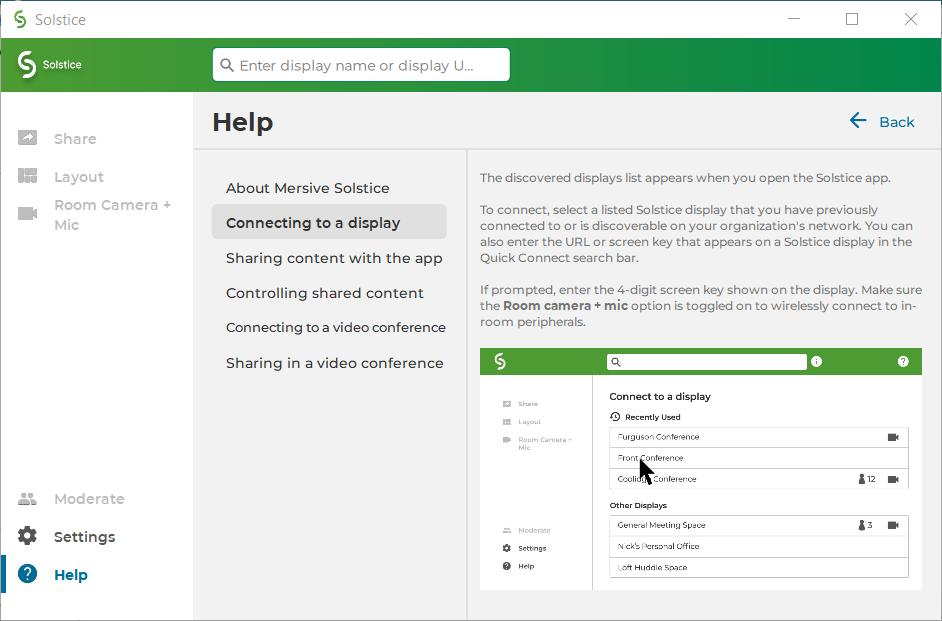
Click Learn more at the end an article to find more in-depth documentation on the topic.
How to End Your Meeting and Disconnect from Solstice
When you are ready to finish your collaboration session, disconnect from Solstice. There are a number of ways to disconnect from a Solstice display:
To disconnect Solstice room camera and mic resources from a video conference, but continue in-room Solstice wireless content sharing and collaboration (Windows and macOS):
- From Room Camera + Mic in the left navbar, click to turn the Room Camera and Mic toggle off (gray).
To disconnect from Solstice completely, including from in-room wireless content sharing and room camera and mic resources plugged into the Solstice Pod, you can do one of the following:
-
Click Disconnect in the top right of the Mersive Solstice app window. You are prompted to confirm that you want to disconnect from the display.
-
Close the Mersive Solstice app window:
-
On a laptop, click the X in the upper right corner to close the main Mersive Solstice app window. You are asked if you want to disconnect from the display and stop sharing all content. Click Disconnect.
-
On a mobile device, close the app window and Solstice automatically disconnects the device from the display.
-
When using Solstice with a video conference, remember to also end your video conference in your conferencing app.
Next Topic
Allow Mac Desktop and Audio Sharing
Enable Solstice Desktop Sharing on macOS
Depending on your macOS security settings, you may need to give the Mersive Solstice app permission to record your desktop to share it to the Solstice display. Follow these directions to ensure the necessary permissions are set before using Solstice with a video conference.
-
Open your Mersive Solstice app and connect to a Solstice display.
-
On the Share panel, click Desktop. If desktop sharing permission is needed, a message appears with brief directions for enabling it.
-
Open System Preferences from your dock or the Apple menu, then select Security & Privacy.
-
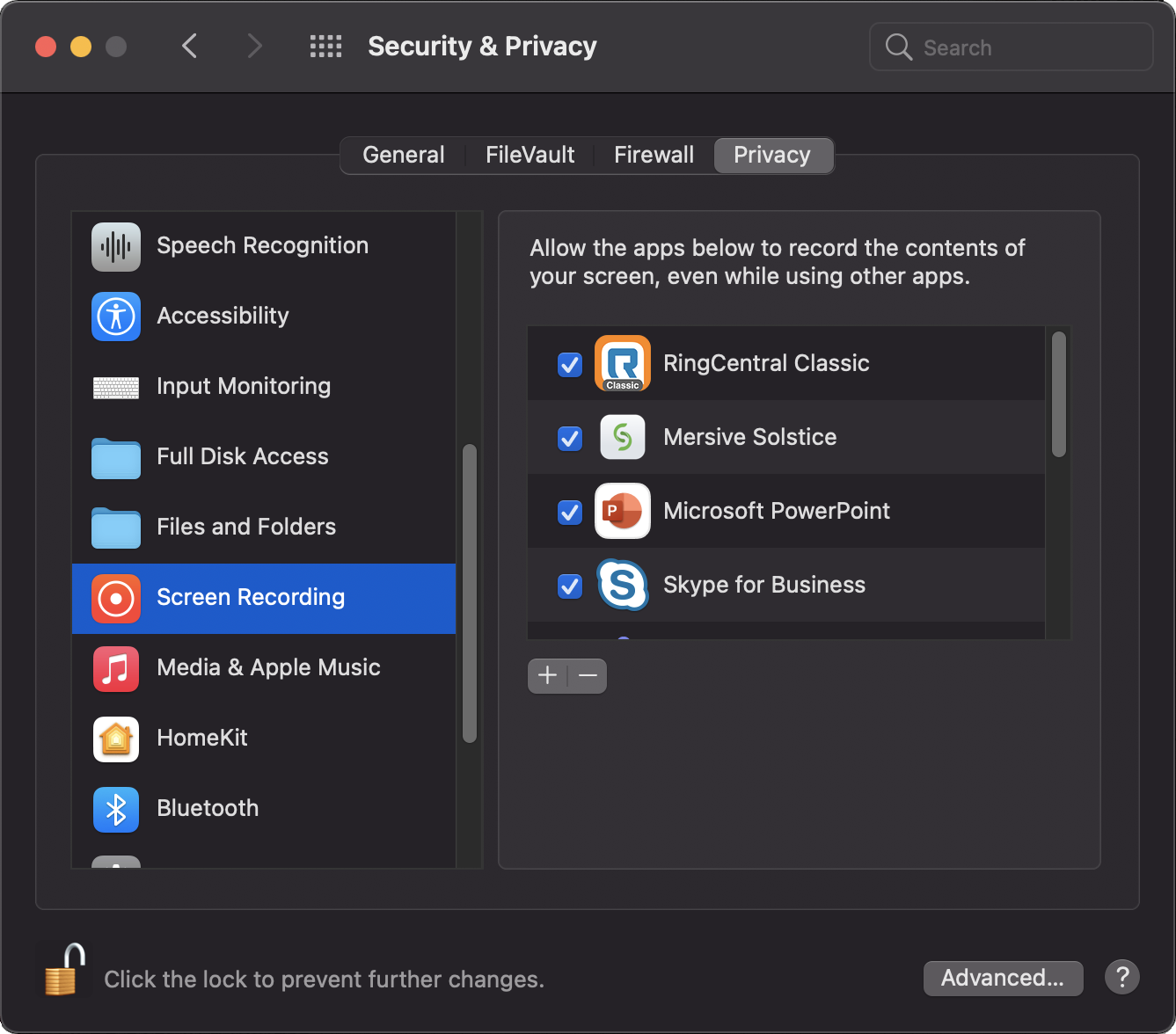
Go to the Privacy tab and select Screen Recording from the list on the left.
-
If needed, click the lock icon in the lower left and enter the password to change permissions on your Mac.
-
If the Mersive Solstice app appears on the right, check the box next to it to give it permission to share your desktop to a Solstice display. Then skip to step 8.
-
If Mersive Solstice does not appear in the allowed apps list on the right, do the following:
-
Click the + button below the apps list.
-
Navigate to the location of the Mersive Solstice app.
-
Select Mersive Solstice and click Open to add it to the apps list. It should be automatically given screen recording permission.
-
-
When Mersive Solstice is checked, you are prompted to Quit & Reopen to restart the Mersive Solstice app so the change can take effect.
Enable Audio for Desktop Sharing on macOS
Depending on your macOS security settings, you may need to enable desktop audio access for the Mersive Solstice app to access the full Solstice content sharing functionality.
-
Open your Mersive Solstice app and connect to a Solstice display.
-
On the Share panel, click Desktop. The Mersive Solstice app minimizes. Click Sharing Desktop at the top of your screen to show the app window.
-
If Auto share audio is enabled in Settings > Control, audio sharing should be turned on automatically. If the speaker icon after the name of the connected Solstice display appears gray with a red slash, click the icon to turn on audio sharing.
-
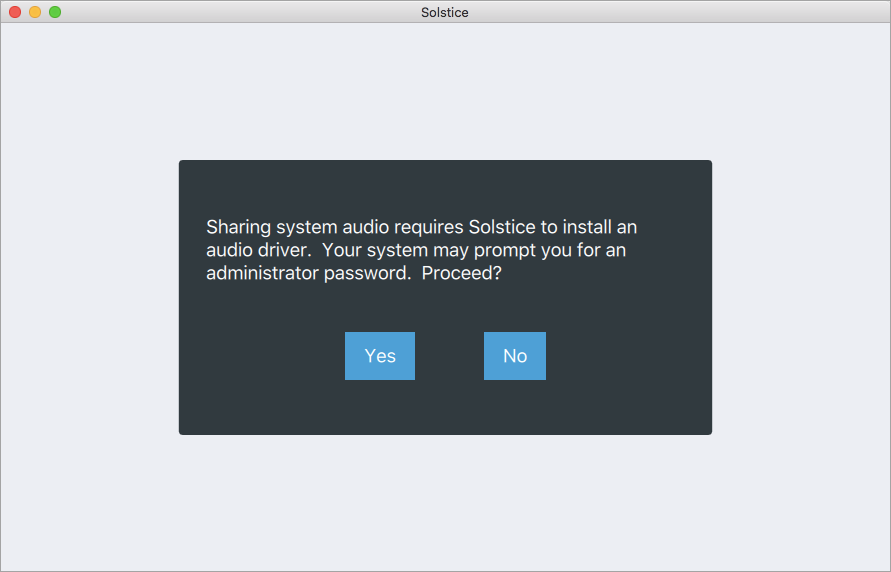
In the prompt that appears, click Yes.
-
If needed, enter your admin password and click OK. A System Extension Blocked pop-up should appear.
-
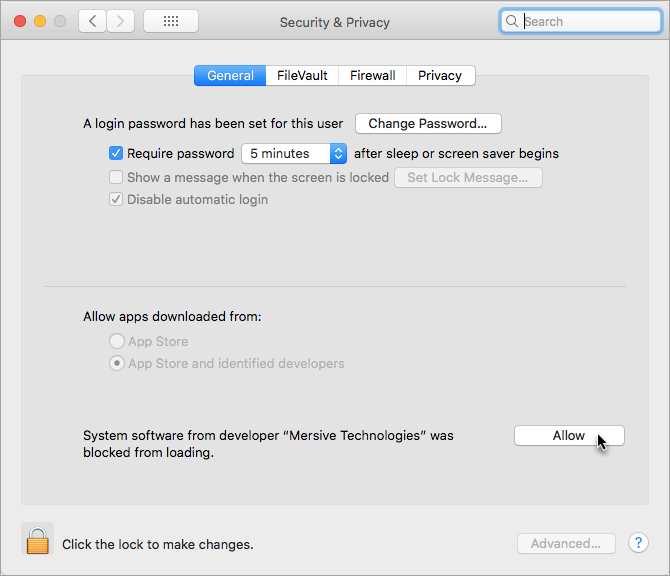
Click Open Security Preferences to open the Security & Privacy settings.
-
Next to ‘System software from developer “Mersive Technologies” was blocked from loading’, click Allow.
-
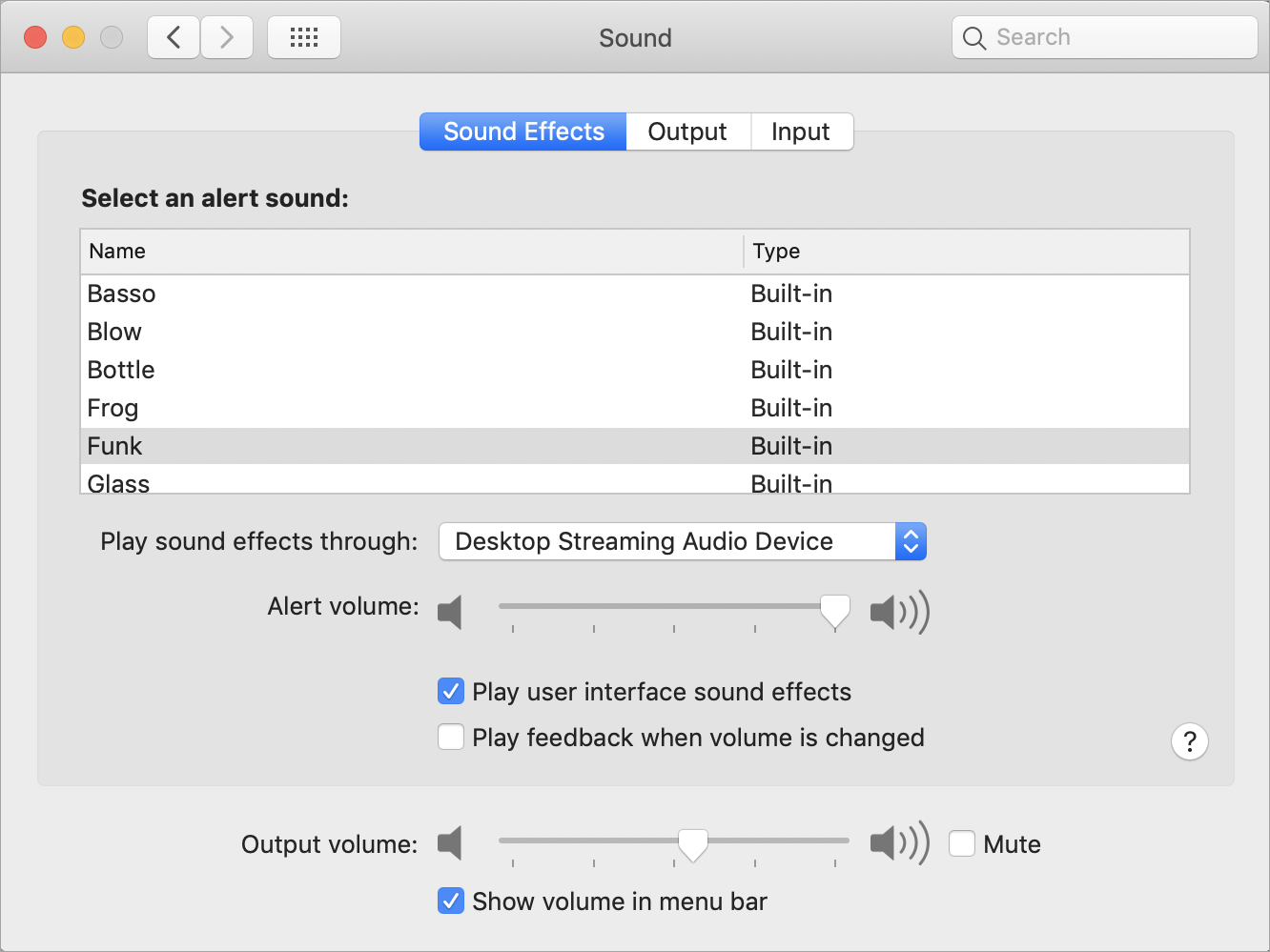
Open System Preferences > Sound.
-
From the Play sound effects through list, select Desktop Streaming Audio Device.
-
Check the Show volume in menu bar option.
-
Go back to the Mersive Solstice app, stop sharing, and click Disconnect.
-
Reconnect to the Solstice display, then share your desktop. Audio is automatically streamed to the in-room display.