Message Center Template
This feature allows you to add an RSS feed to a Solstice Pod’s Welcome screen that scrolls across the top. You can also create and publish an emergency message that is broadcast to all Pods it is published to.
How To
Access This Page
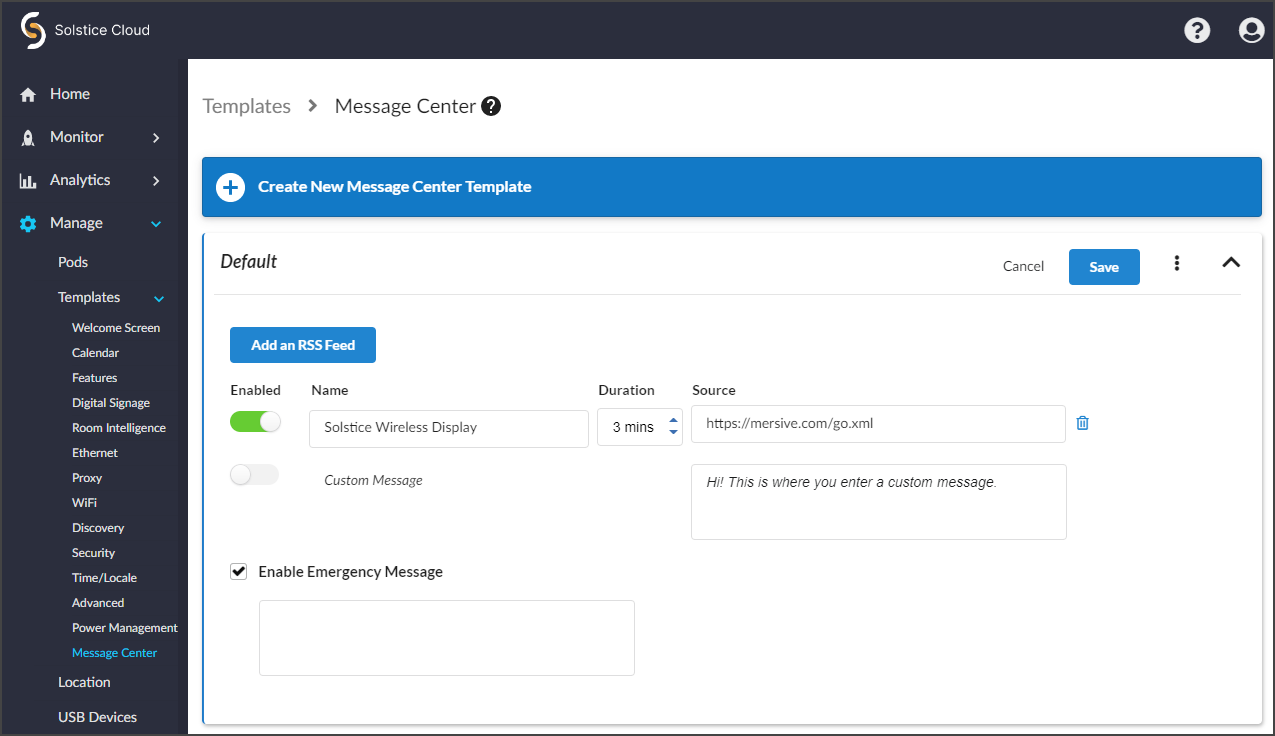
- From the Solstice Cloud Home page, in the left sidebar navigation panel, click Manage > Templates > Message Center.
Create Message Center Template
-
Click Create New Message Center Template.
-
Enter the Template Name. For example, you could name the template by location (London Office) or descriptively (Mountain Theme).
-
Click Save.
Add an RSS Feed to the Welcome Screen
-
To add a new RSS feed, click the Add an RSS Feed button. A new row appears.
-
Enter in the Name of the RSS feed.
-
Set the Duration the RSS feed appears before displaying the next feed or custom message.
-
Enter in the Source RSS URL. The URL must point to a valid XML file with a root element type of
. -
To have a custom message display in the top banner, toggle the slide switch to enabled (it is green when enabled), and enter your message in the Custom Message field.
-
Click Save.
-
To disable any of the RSS feeds or the custom message, toggle the Enabled option off. The toggle slides to the left and turn grey to indicate it is disabled.
-
To delete any of the RSS feeds, click the Delete
 icon located to the right of the Source field.
Publish an Emergency Message
In the event of an emergency, Solstice can push an emergency message to Solstice displays that appears across the top as an emergency banner. To publish an emergency message, you first create a message as part of a template, and then assign that template to the pods you want to receive the emergency message.
-
Open an existing template or create a new template, then select the Enable Emergency Message checkbox.
-
In the field below, enter in the text of the emergency message.
-
Click Save. If this template is already applied to Pods, it is immediately broadcast to those Solstice displays.
-
Close the template, then click Assign Pods OR go to Manage > All Pods.
-
Select the Pods you want to publish the emergency message to, then click the list in the Message Center column and select your template. The emergency message is immediately broadcast to those Solstice displays, and overrides any content shared on those displays.
-
To disable the emergency message, you can either unassign the emergency message template, or you can deselect the Enable Emergency Message checkbox within the assigned message template.
Assign the Template to Pods
-
In the left sidebar menu of Solstice Cloud, click Manage > Pods.
The Pod Template Assignments table displays. This table is used to apply templates across your deployment. You can apply a template to multiple Pods at once.
-
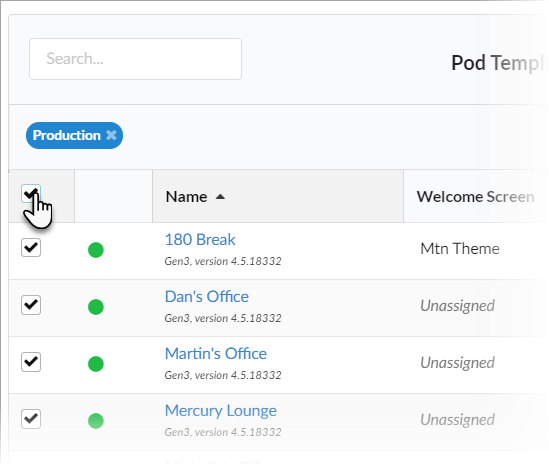
Select the Pods you want to apply the template to. You can select each Pod’s checkbox individually, or select the checkbox in the header row of the table to select all Pods showing in the table.
-
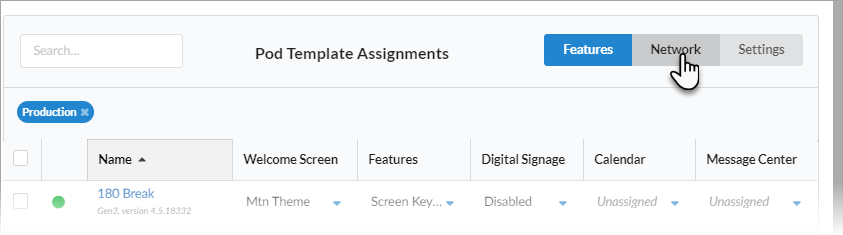
For each template you want to apply, go to the corresponding template type column (e.g., Welcome Screen). You can view different groups of templates by selecting a template category in the upper right corner of the table.
-
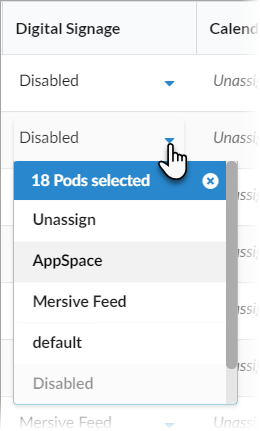
Select the template with the desired configuration from the list in the appropriate column for one of the selected Pods. This applies the template to all the selected Pods in the table.
-
Click Confirm when to confirm applying the selected template to all selected Pods.
-
As changes are being applied, the pending changes
 icon appears next to the template(s) being applied. After the changes are applied, the Pod’s normal status resumes.
-
If a Pod is offline, any changes made are applied when the Pod comes back online.
-
If a settings change in a Cloud template causes Solstice Cloud to be unable to connect to the Pod, the Pod’s settings for that template is rolled back to their previous configuration. A failure icon
 shows that the template could not be applied.
-
-
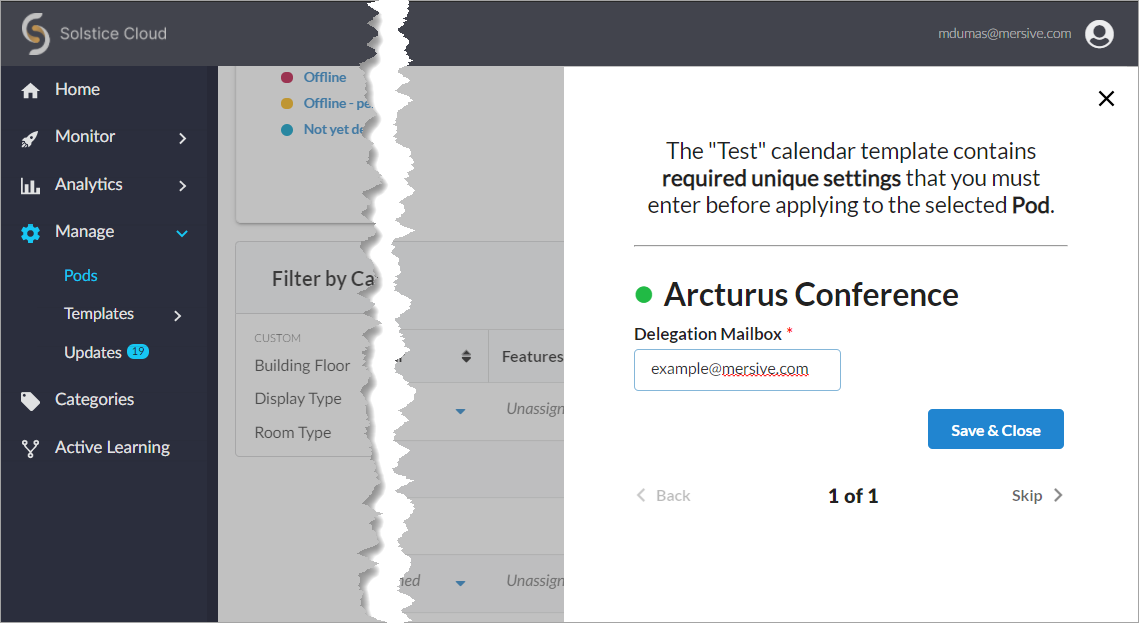
If a template you applied has any unique-to-Pod settings that need to be applied each Pod individually, a pop-up pane appears prompting you to enter the needed information for each affected Pod. After you complete all of the settings screens, click Save & Close.