Google Workspace Settings for Calendar Integration
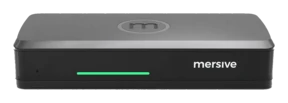
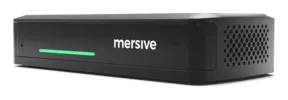
Integrating the calendar for a room that is set up as a resource in Google Workspace allows you to use the Solstice Pod’s display to show the calendar information for the resource when there is no other content being shared. Looking at the Pod display, participants can see if the space is currently scheduled or available, as well as the next three upcoming meetings in the space.
If your organization is using Solstice video conferencing functions, integrating a room also lets Solstice detect the web conferencing information in the calendar invite when users book a web conference and invite the room. This allows Solstice to start the scheduled web conferencing when the meeting host connects to the Solstice display.
Before Starting Your Solstice Integration
The Solstice integration directions below assume the following:
-
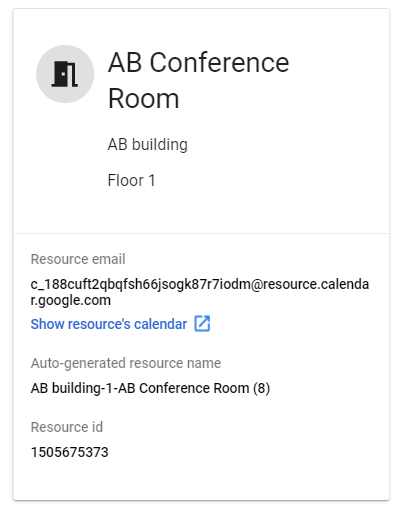
For each space with a Solstice Pod, your organization has created resources in the Google platform that can be scheduled by users. The calendars for these resources appear on the Pod when the integration is complete. You need the Resource email to configure the Solstice Pod’s settings.
An example of a Resource created for the space AB Conference Room is shown below. Google Workspace resources can be located and managed at Google Admin > Directory > Buildings and resources > Manage resources (for example, https://admin.google.com/ac/calendarresources/resources).
Example resource:
-
Your organization has enabled the Google Calendar API in Google Cloud Platform. This API can be located and managed at Google Cloud Platform > Calendar API (for example, https://console.cloud.google.com/home/dashboard).
-
If you want to show meeting organizers on the Pod display, those users must have “Active” profiles. User profile settings can be located and managed at Google Admin > Directory > Users (for example, https://admin.google.com/ac/users).
The general steps for configuring a resource in Google Workspace to allow its calendar to appear on a Solstice Pod display are as follows:
-
Create a service account that the Pod display can use to get information about the resource’s calendar.
-
Delegate Domain-Wide Authority to the service account.
-
Grant the service account access to the resource’s calendar.
See below for detailed information about each of these steps.
How to Configure Google Workspace to Integrate with Solstice
Step 1: Create a Service Account for the Solstice Pod
-
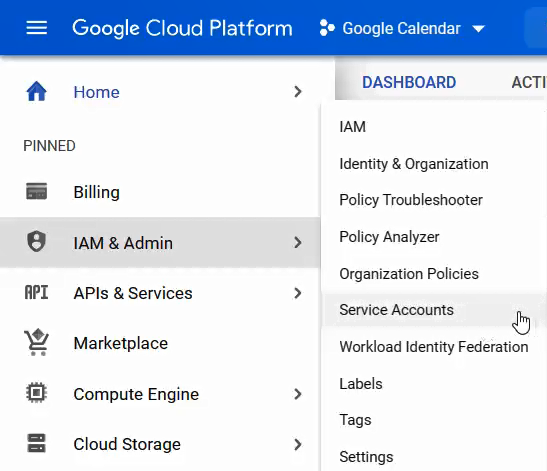
From the Google Cloud Platform dashboard, use the left bar to navigate to IAM & Admin > Service Accounts.
-
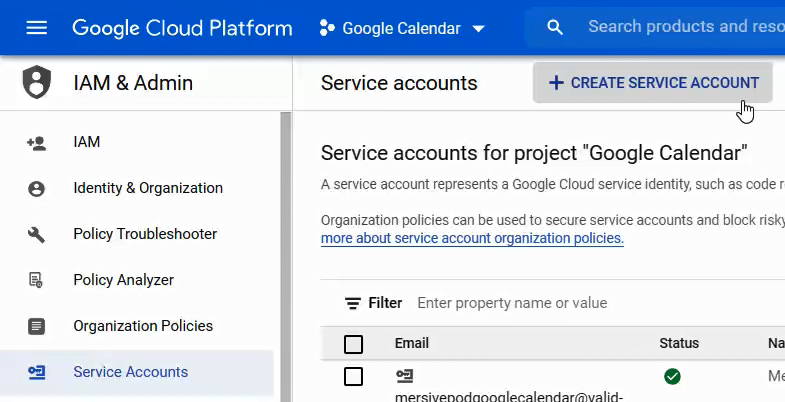
Click Create Service Account.
-
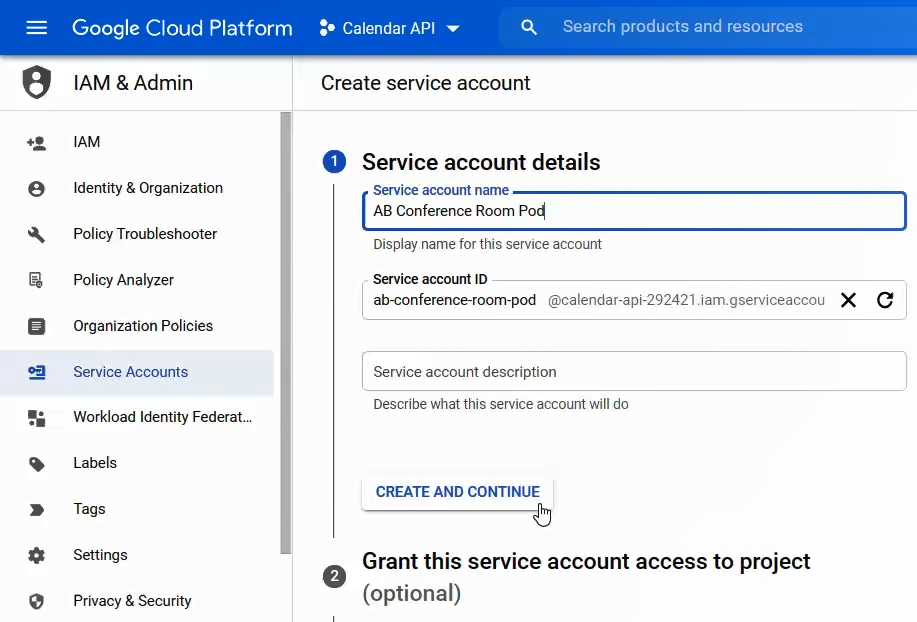
Enter a name for the service account and click Create and Continue.
-
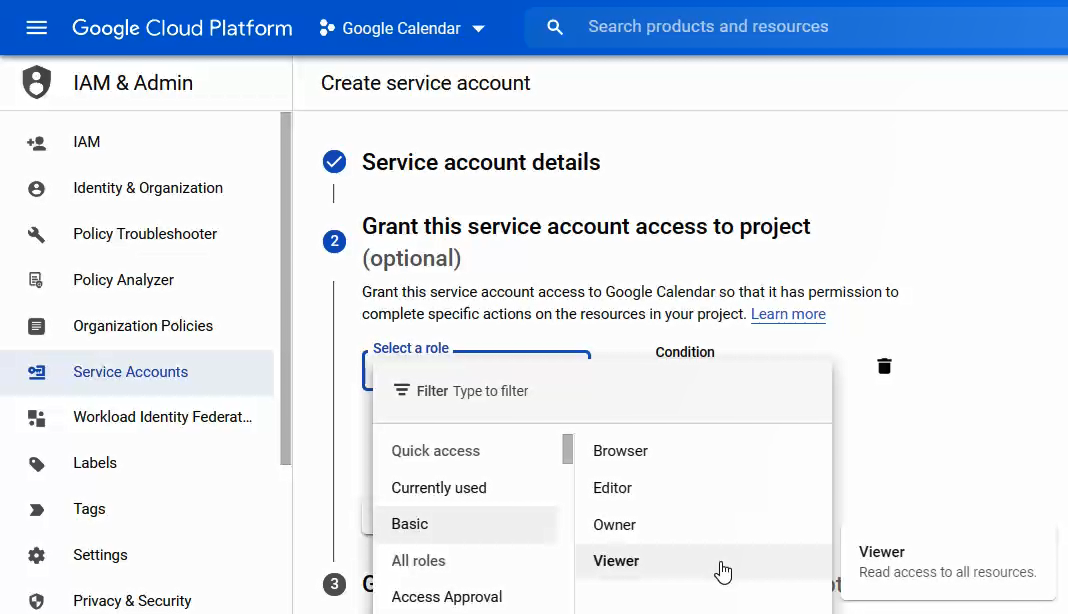
In the Grant this service account access… step, select the role of Viewer.
-
Continue to complete the access setup, and finish creating the new service account.
-
In the Service Accounts table, click to select the account you just created.
-
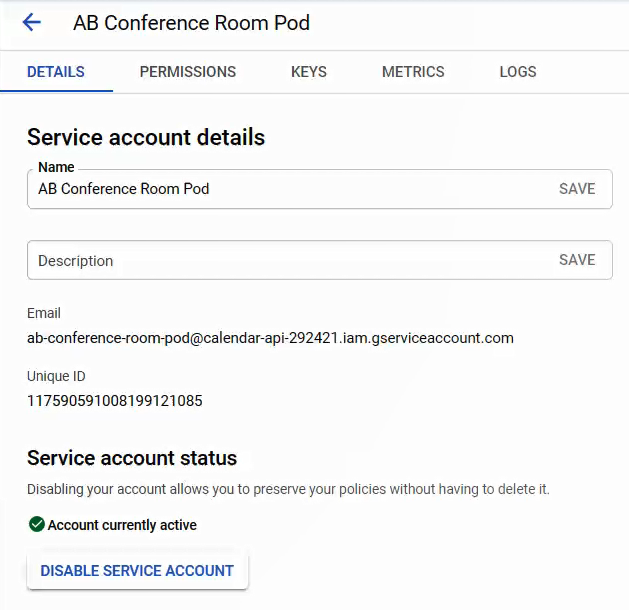
Under Service account details, note the Email and Unique ID for the service account. You need this information in steps 2 and 3.
-
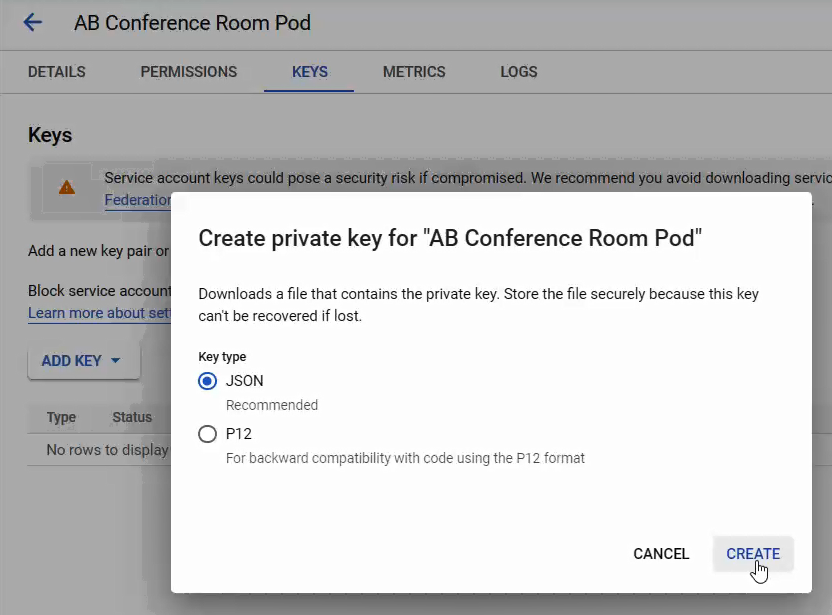
Navigate to the Keys area for the selected Service Account. Select Add Key > Create new key > JSON and Create the key.
-
Save the downloaded JSON file to a safe location. You also need to provide the key as service credentials when configuring the Pod’s calendar display settings in Solstice Dashboard or Solstice Cloud.
Step 2: Delegate Domain-Wide Authority to the Service Account
-
Log in to Google Admin, then navigate to the API controls (usually in the Security section under Access and data control).
-
At the bottom of the API controls screen, go to Manage Domain Wide Delegation.
-
On the Domain-wide Delegation page, select Add new.
-
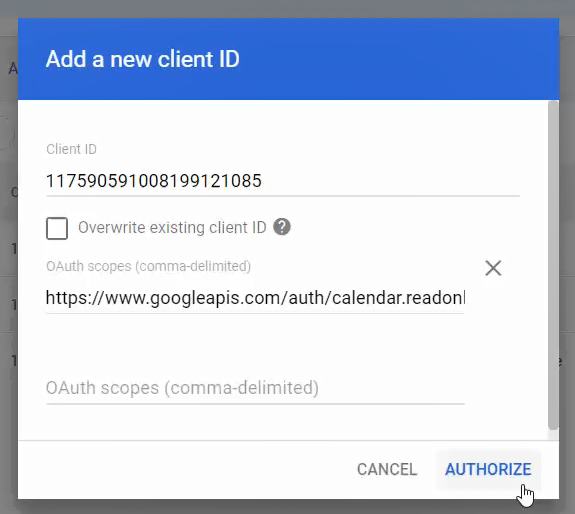
In Add a new client ID, enter the Unique ID of the service account you created for the Solstice Pod, (for example, “117590591008199121085” - see the service account details screen above) as the Client ID.
-
Enter the URL https://www.googleapis.com/auth/calendar.readonly on the first OAuth scopes line.
-
Click to Authorize the delegation scope for the service account.
Step 3: Grant the Service Account Access to the Resource's Calendar
-
When logged in to Google Admin, open Google Calendar.
-
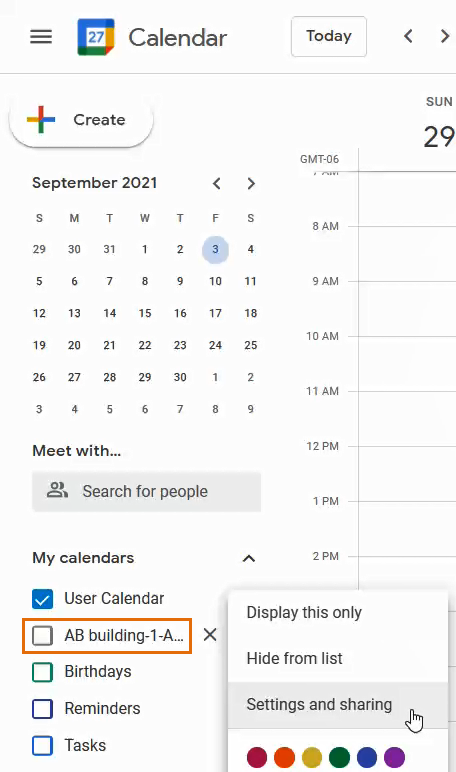
From the My calendars section on the left, hover over the resource whose calendar you want to share, click the options dots, and select Settings and sharing.
-
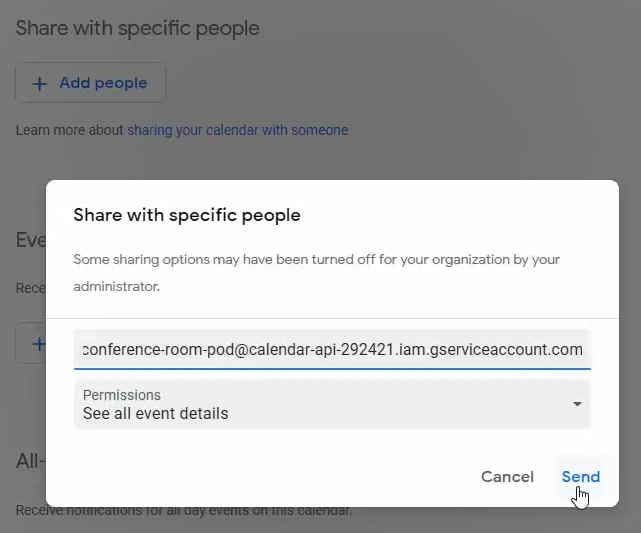
Scroll down to the Share with specific people section and click Add People.
-
Enter the email address of the service account for the Solstice Pod located in that space (see the service account details screen above) and then click Send. The resource’s calendar information is now shared with the service account.
-
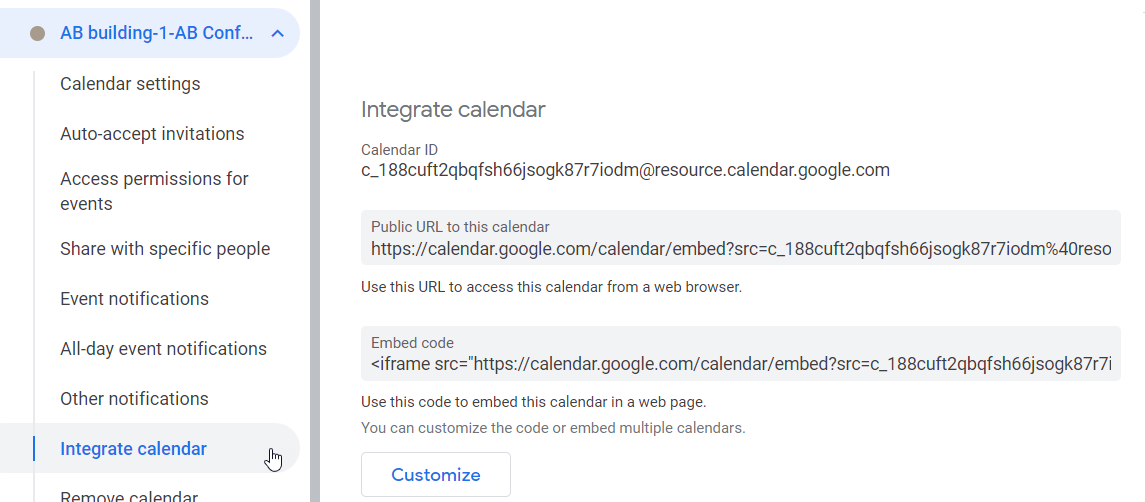
Also in the resource calendar settings, go to Integrate Calendar. Take note of the email address that appears under Calendar ID. This is what you enter as the Room Email in the Calendar configuration for the associated Solstice display.
Next Step: Configure Solstice to Display the Resource's Calendar
You are now ready to configure a Solstice display to access the Google Workspace resource calendar you just set up for it. Follow the appropriate link below for more information about doing so in the Solstice management tool used by your organization.